

Translating menus
Gato AI Translations for Polylang can translate your WordPress navigation menus to all configured languages.
You can translate a menu in two ways:
- Manually, by clicking the Gato Translate button in the menu editor
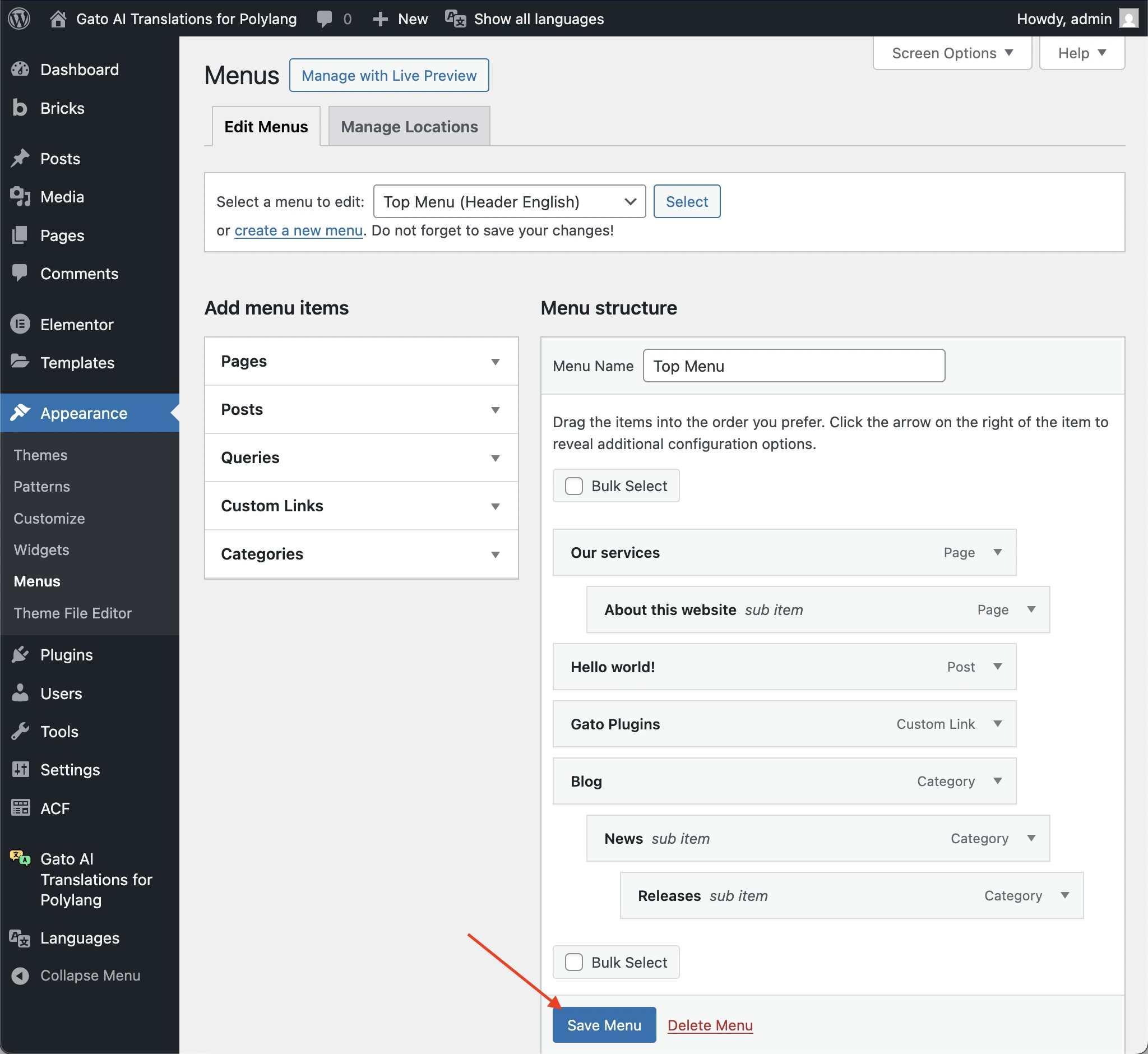
- Automatically, every time you save a menu
Manual translation via the Gato Translate button
The menu editor exposes a Gato Translate button that triggers a one-off translation for the current menu — without needing to enable automatic translation.
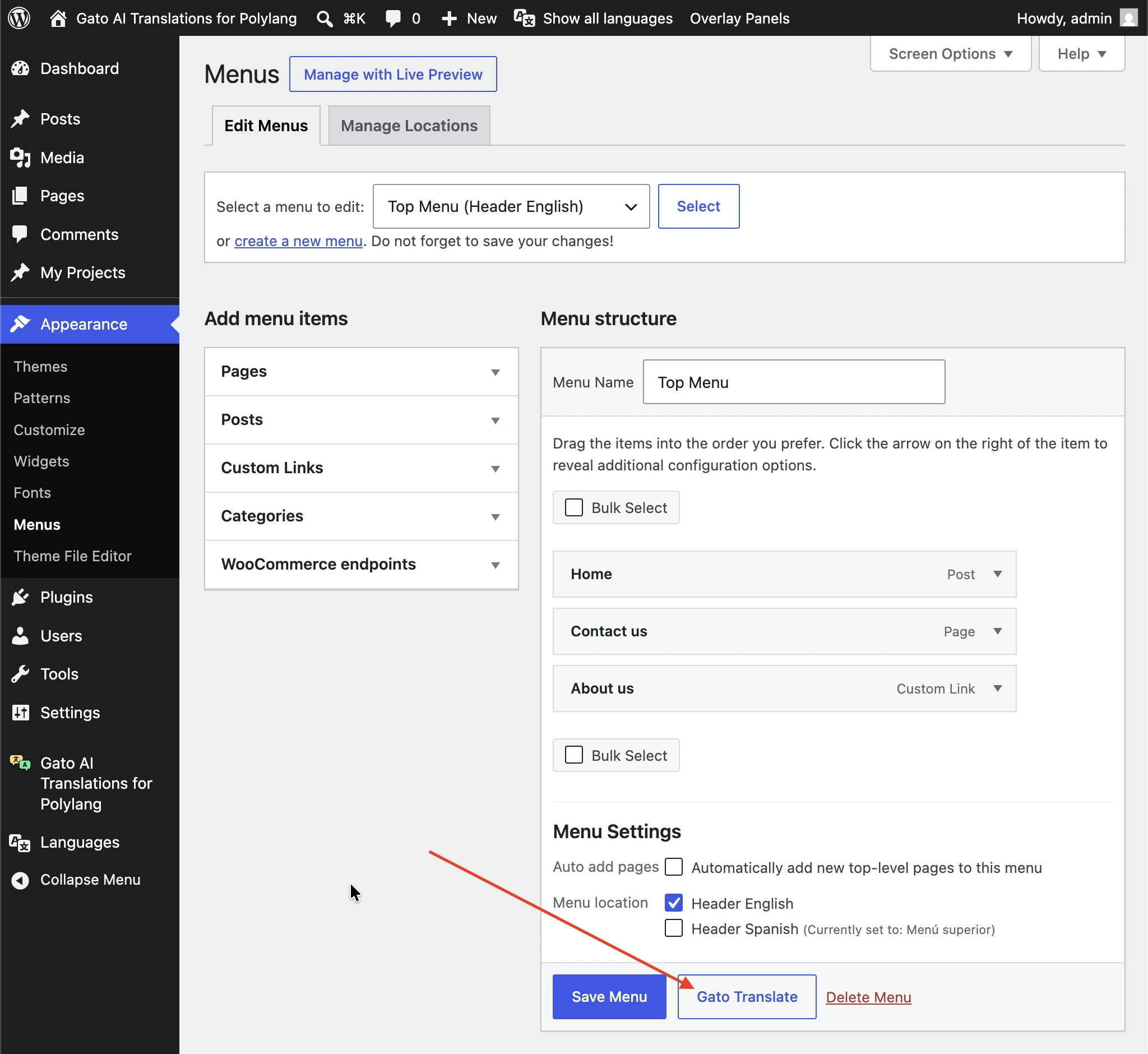
The button is only visible when the menu has a location in the origin language assigned (since Polylang does not store the language for menus directly, the plugin determines the menu's language from its assigned locations).
Automatic translation when saving a menu
Automatic translation for menus is disabled by default. To enable it, go to the Plugin Configuration > Automatic Translation tab in the Settings, and set the Automatic translation for Menus option to Enabled.
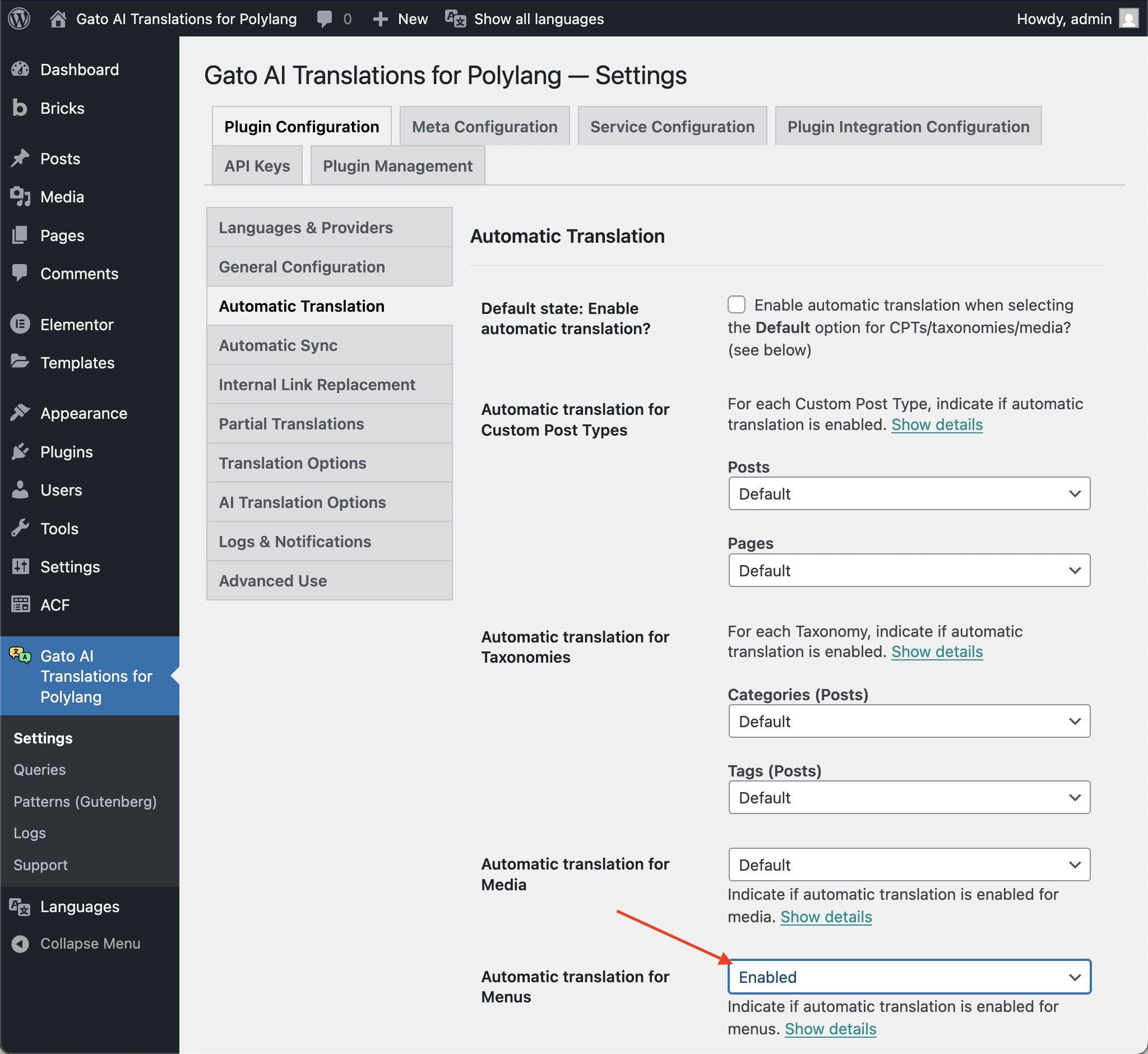
When enabled, menus are translated whenever you click Save Menu in the menu editor.
How translation works
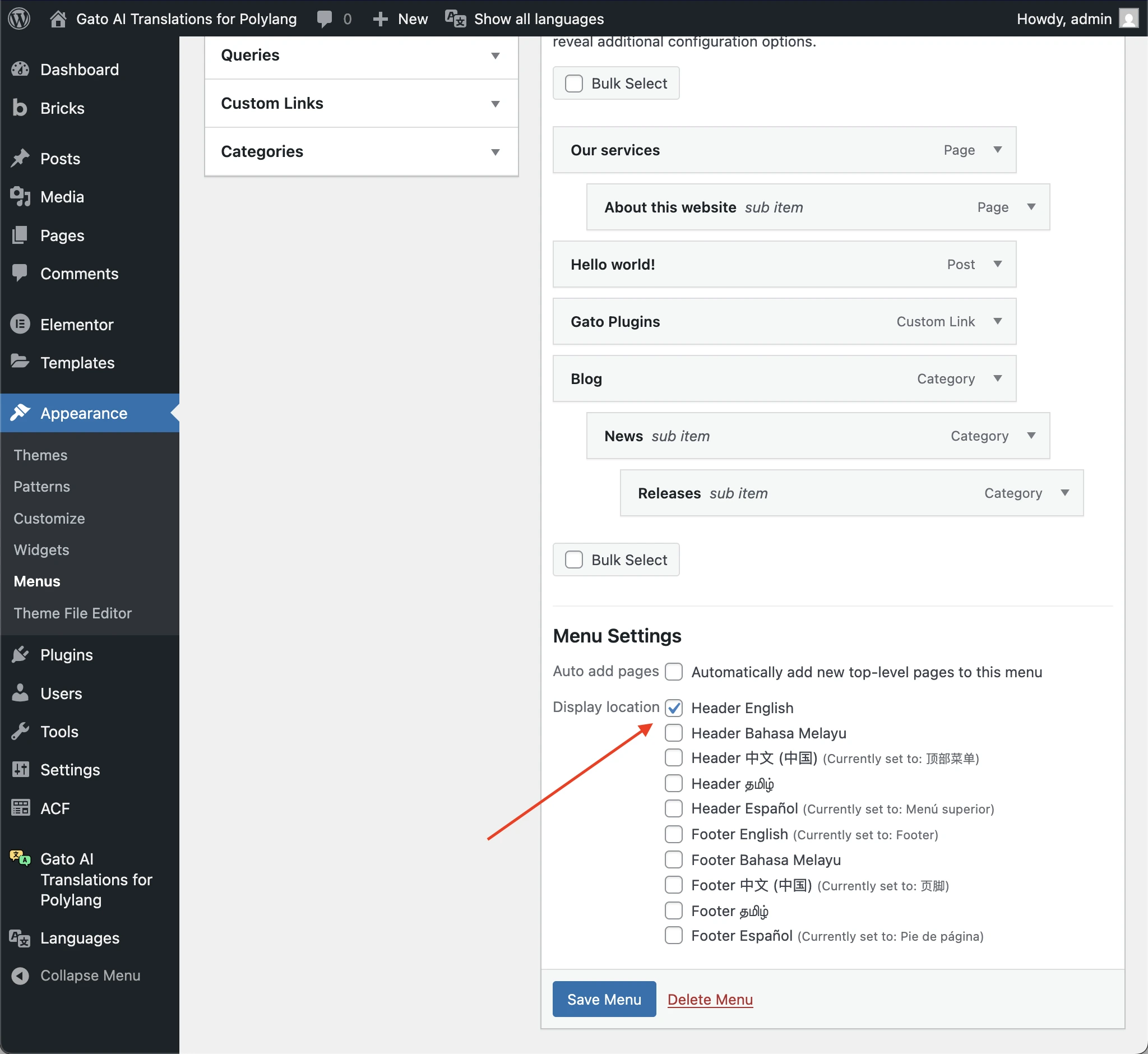
Only menus in the origin language are translated. The translation is triggered for a menu only if:
- The menu has one location (or more) already assigned
- This location is for the origin language
When a menu is translated, the plugin:
- Creates a new menu for each target language, with the same structure as the origin menu
- Translates all menu item labels
- Points the entity links (posts, pages, categories, etc) to their corresponding translations
- Assigns the translated menu to the corresponding menu location for each language
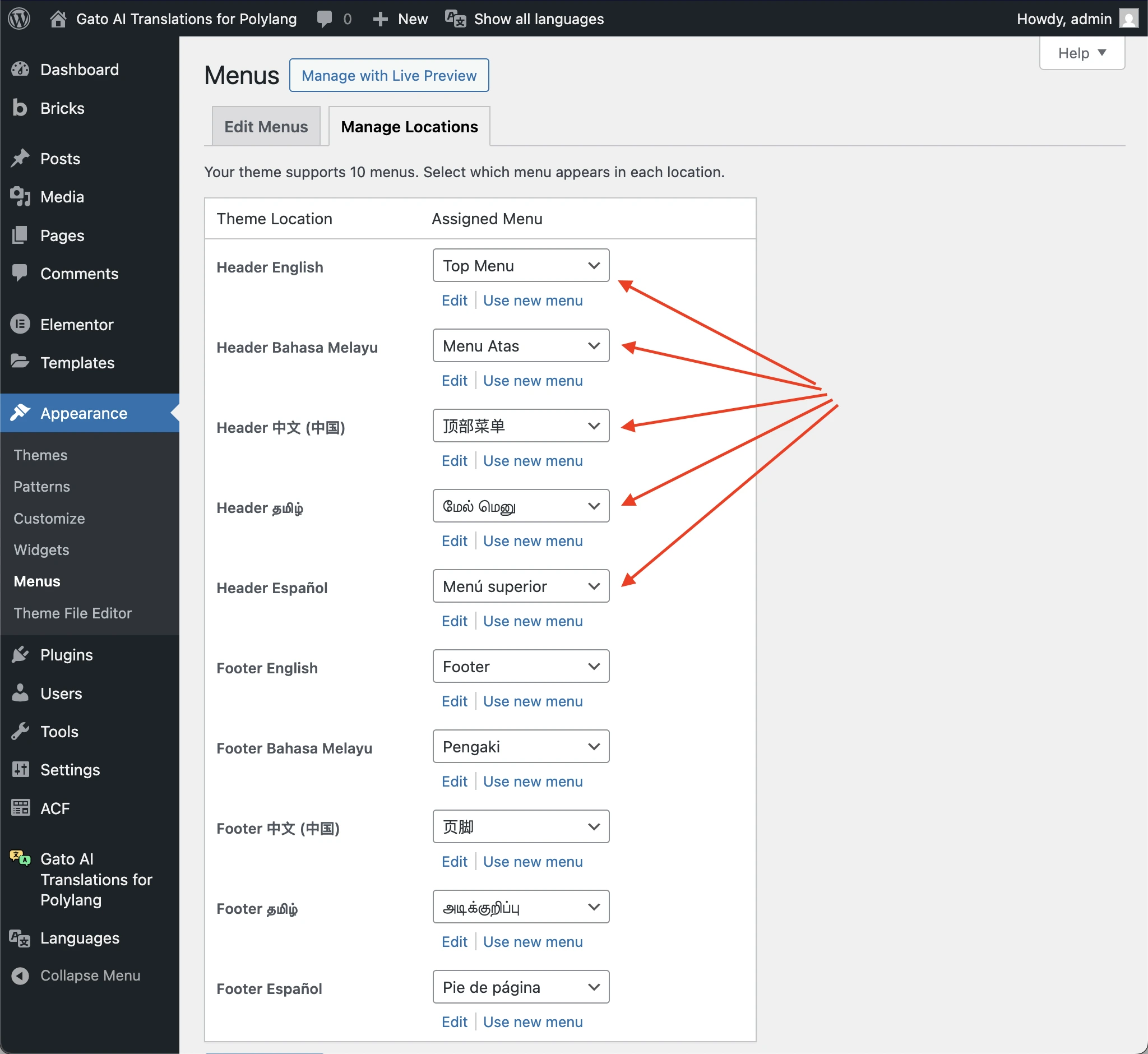
You can edit the translated menu in the same way you edit the origin menu.
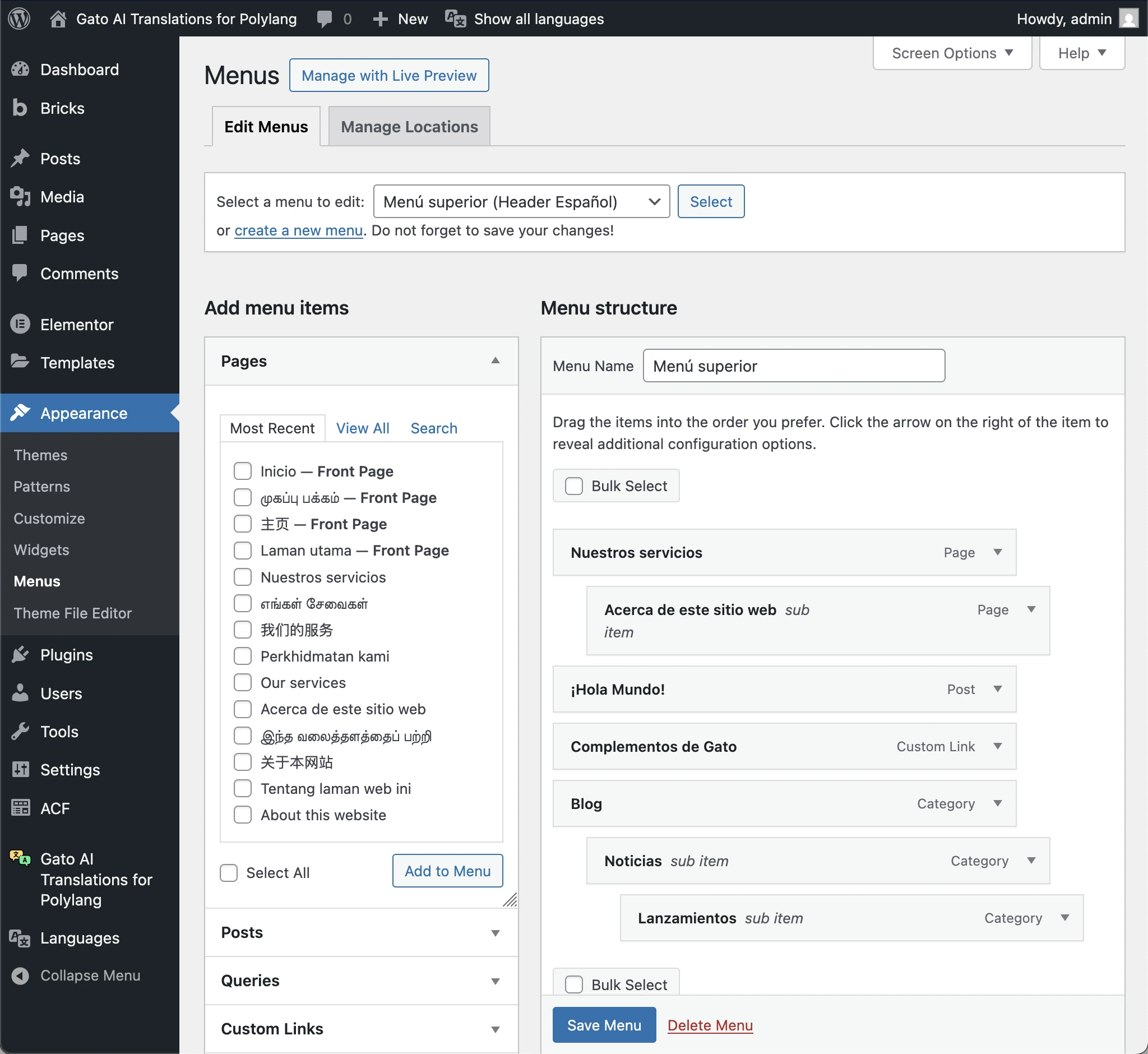
If you manually edit a translated menu, those changes may be overwritten when the origin menu is updated and re-translated.