Gutenberg
Support for Gutenberg is built-in, to translate all the blocks in your Gutenberg content.
Gato AI Translations for Polylang extracts the strings from the blocks in the Gutenberg content, and translates only those strings, guaranteeing that the content is not broken in any way.
Out of the box, the following blocks types are automatically supported:
- WordPress core blocks
- PHP-only blocks
- Advanced Custom Fields (ACF) blocks
- All blocks that ship a
wpml-config.xml - 3rd-party blocks:
- Kadence Blocks
- Greenshift blocks
- GenerateBlocks blocks
- Yoast SEO blocks
Supported WordPress core blocks
The following WordPress core blocks are supported out of the box:
core/audiocore/block(i.e. synced patterns)core/buttoncore/covercore/embedcore/headingcore/htmlcore/imagecore/listcore/list-itemcore/media-textcore/paragraphcore/preformattedcore/pullquotecore/quotecore/tablecore/versecore/video
PHP-only blocks
From WordPress 7.0, blocks can be registered as PHP-only (no JavaScript bundle). Gato AI Translations for Polylang treats them like any other block: they are supported out of the box, with no extra setup.
All string attributes (other than enums and other scalar types) are automatically registered for translation.
If a specific field must not be translated, you can opt it out via the gatompl:gutenberg_block_type_translatable_attribute_regexes hook by setting it to false (or by unset-ting it):
add_filter(
'gatompl:gutenberg_block_type_translatable_attribute_regexes',
static function (array $regexes): array {
// Either of these works:
unset($regexes['my-plugin/alert']['header']);
$regexes['my-plugin/alert']['implications'] = false;
return $regexes;
}
);Advanced Custom Fields (ACF) blocks
Blocks registered via Advanced Custom Fields are also supported out of the box. There are 3 ways to register an ACF field for translation:
1. Automatically for all fields (via Settings)
Go to the Settings page, under Plugin Integration Configuration > Advanced Custom Fields, and enable the Translate ACF blocks automatically? option:
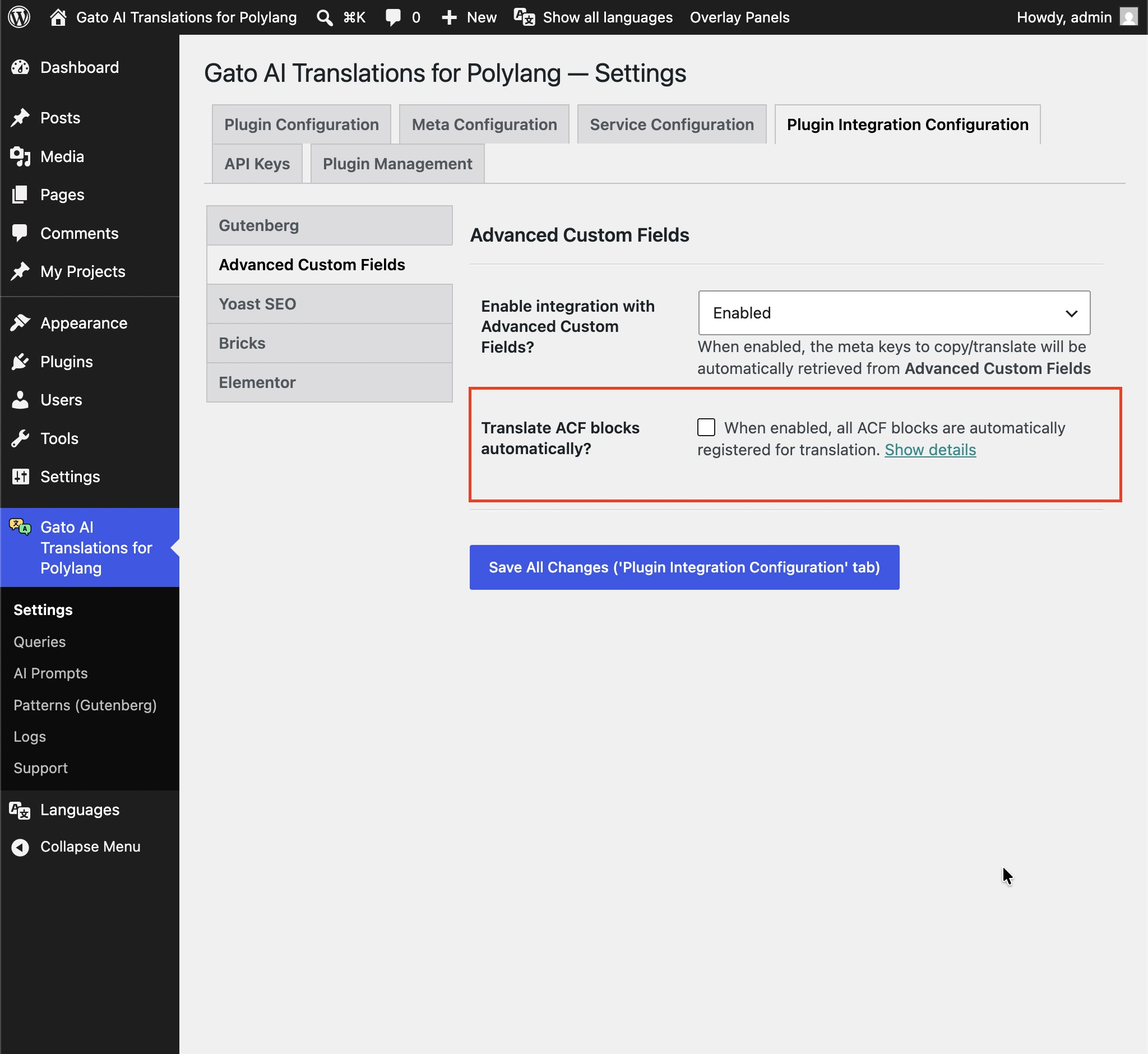
When enabled, every translatable string field on every ACF block is sent for translation. If a specific field must not be translated, opt it out via the standard ACF acf/load_field hook, setting gatompl to 'skip':
// Disable translation for a single field by key
add_filter(
'acf/load_field/key=product_card_sku',
static function (array|false $field): array|false {
if (is_array($field)) {
$field['gatompl'] = 'skip';
}
return $field;
}
);
// Or disable several fields at once
add_filter(
'acf/load_field',
static function (array|false $field): array|false {
if (
is_array($field) && in_array($field['key'] ?? null, [
'product_card_feature_title',
'product_card_specs_dimensions',
'product_card_section_text_heading',
])
) {
$field['gatompl'] = 'skip';
}
return $field;
}
);2. Field by field (via the ACF field group config)
When defining your field group with acf_add_local_field_group(), add 'gatompl' => 'translate' directly to each field you want translated:
acf_add_local_field_group([
'key' => 'group_testimonial',
'title' => 'Testimonial Block',
'fields' => [
[
'key' => 'testimonial_text',
'label' => 'Testimonial',
'name' => 'testimonial',
'type' => 'textarea',
'gatompl' => 'translate',
],
[
'key' => 'testimonial_role',
'label' => 'Role',
'name' => 'role',
'type' => 'text',
// Option-array form — equivalent to `'gatompl' => 'translate'`,
// but leaves room for future plugin-side options on the same field
'gatompl' => [
'translation_configuration' => 'translate',
],
],
[
'key' => 'testimonial_featured_post',
'label' => 'Featured post',
'name' => 'featured_post',
'type' => 'post_object',
'post_type' => ['post'],
'return_format' => 'object',
'gatompl' => 'translate', // The referenced post ID is remapped to the target-language post
],
],
'location' => [
[
[
'param' => 'block',
'operator' => '==',
'value' => 'acf/testimonial',
],
],
],
]);This works for post_object, relationship, taxonomy, image, gallery and repeater fields too: the plugin will follow nested-repeater paths to any depth, and remap entity references (posts, terms, media) to their target-language equivalent.
3. Field by field (via the acf/load_field hook)
If you cannot edit the field group registration, opt fields in via the same ACF hooks used to opt them out:
add_filter(
'acf/load_field/key=testimonial_text',
static function (array|false $field): array|false {
if (is_array($field)) {
$field['gatompl'] = 'translate';
}
return $field;
}
);Registering an ACF block
For reference, here's a minimal block registration that pairs with the field group above (using acf_register_block_type from ACF PRO):
add_action('acf/init', function (): void {
if (!function_exists('acf_register_block_type')) {
return;
}
acf_register_block_type([
'name' => 'testimonial',
'title' => 'Testimonial',
'description' => 'A testimonial block.',
'render_template' => plugin_dir_path(__FILE__) . 'acf-blocks/testimonial/template.php',
'category' => 'widgets',
'icon' => 'format-quote',
'keywords' => ['testimonial', 'quote'],
'mode' => 'preview',
]);
});WPML Config
Gato AI Translations for Polylang automatically reads the wpml-config.xml shipped by any plugin and uses it to determine which block attributes are translatable.
Attempt Recovery notices
Some blocks may display an Attempt Recovery notice in the editor after translation:
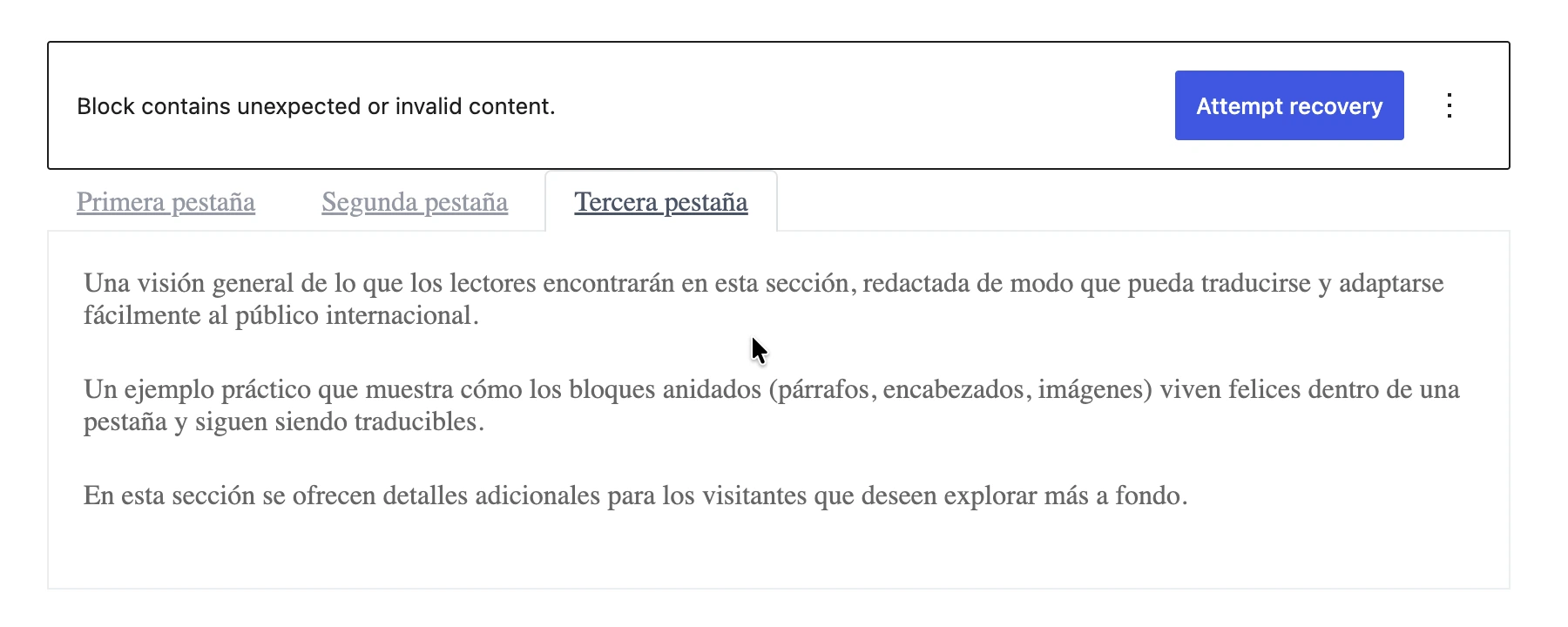
See Why do some blocks need "Attempt Recovery" after translation? for more details.
Disabling translation of a specific property
To disable translation of a specific property (or all properties of a block) defined through wpml-config.xml, return false from the gatompl:use_wpml_config_for_block_type filter:
add_filter(
'gatompl:use_wpml_config_for_block_type',
static function (bool $enabled, string $blockTypeName, string $ruleKind): bool {
// Stop reading wpml-config.xml rules for greenshift-blocks/button
if ($blockTypeName === 'greenshift-blocks/button') {
return false;
}
return $enabled;
},
10,
3
);Kadence Blocks
All blocks from the Kadence Blocks plugin are supported automatically (via their wpml-config.xml).
The following blocks may render correctly on the frontend after translation but display an Attempt Recovery notice when opened in the editor:
kadence/single-iconkadence/tabskadence/form
Clicking Attempt Recovery rebuilds the block's HTML, but is optional — the frontend output is already correct (read details).
Greenshift Blocks
All blocks from Greenshift are supported automatically (via their wpml-config.xml).
Greenshift's translated blocks generally require clicking Attempt Recovery in the editor on each block to regenerate its HTML (read details).
GenerateBlocks
Blocks from GenerateBlocks and GenerateBlocks PRO:
- Container
- Grid
- Text
- Button
- Headline
- Image
- Query
- Shape
- Site Header
- Accordion
- Tabs
- Navigation
Yoast SEO
These blocks are supported for simple strings only. Strings containing HTML tags (including links, images, HTML styles like strong or italic, new lines, etc.) are not supported.
Read guide Can all Gutenberg blocks be translated? for more information.
Blocks from Yoast SEO:
- Yoast How-to
- Yoast FAQ
Supporting additional blocks
You can translate custom blocks from your application, or blocks from 3rd-party plugins.
Check the Translating additional Gutenberg blocks guide for more information.
Translating synced patterns
The default Appearance > Patterns page from WordPress does not support translating synced patterns (also known as reusable blocks), because:
- Polylang does not add the widget to select the language (only Polylang PRO does)
- It does not offer Bulk Actions, hence it is not possible to translate existing patterns
For this reason, Gato AI Translations for Polylang offers the standard Patterns CPT page, under menu item Patterns (Gutenberg), enabling these features.
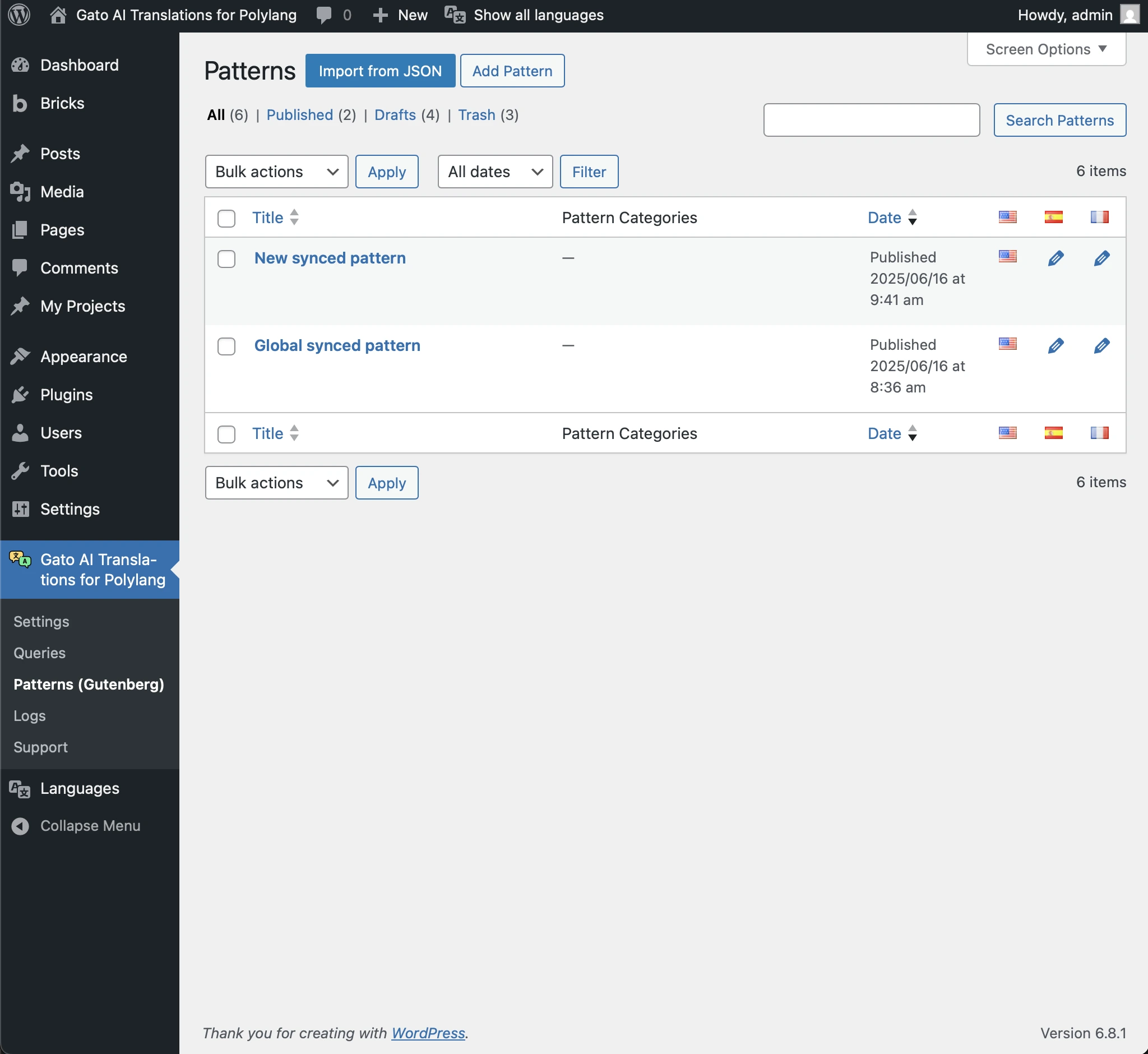
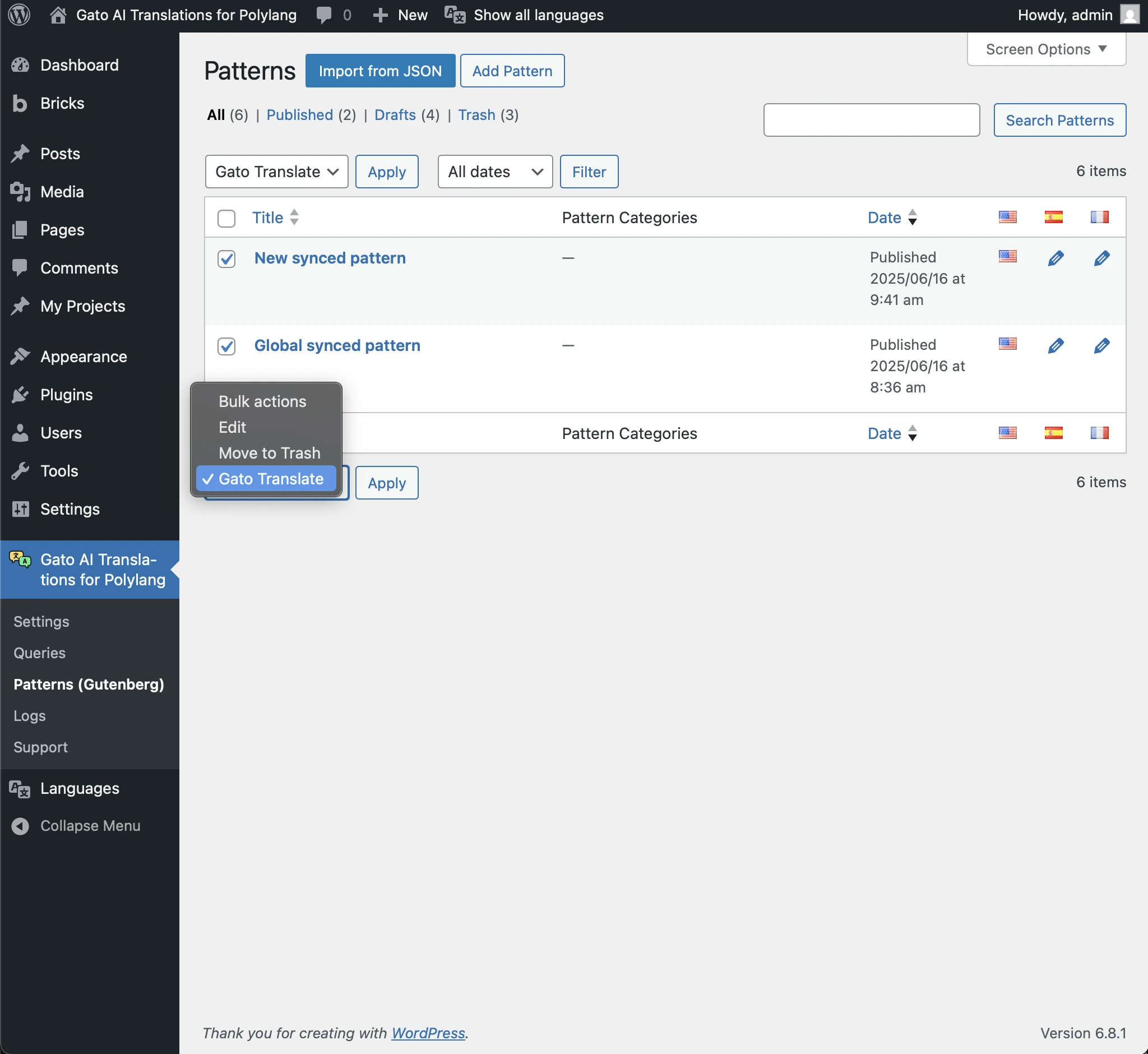
You can translate patterns from this screen (similar to any other CPT):
- Automatically translate new patterns when published (from the Add Pattern screen)
- Manually translate existing patterns using Bulk Actions
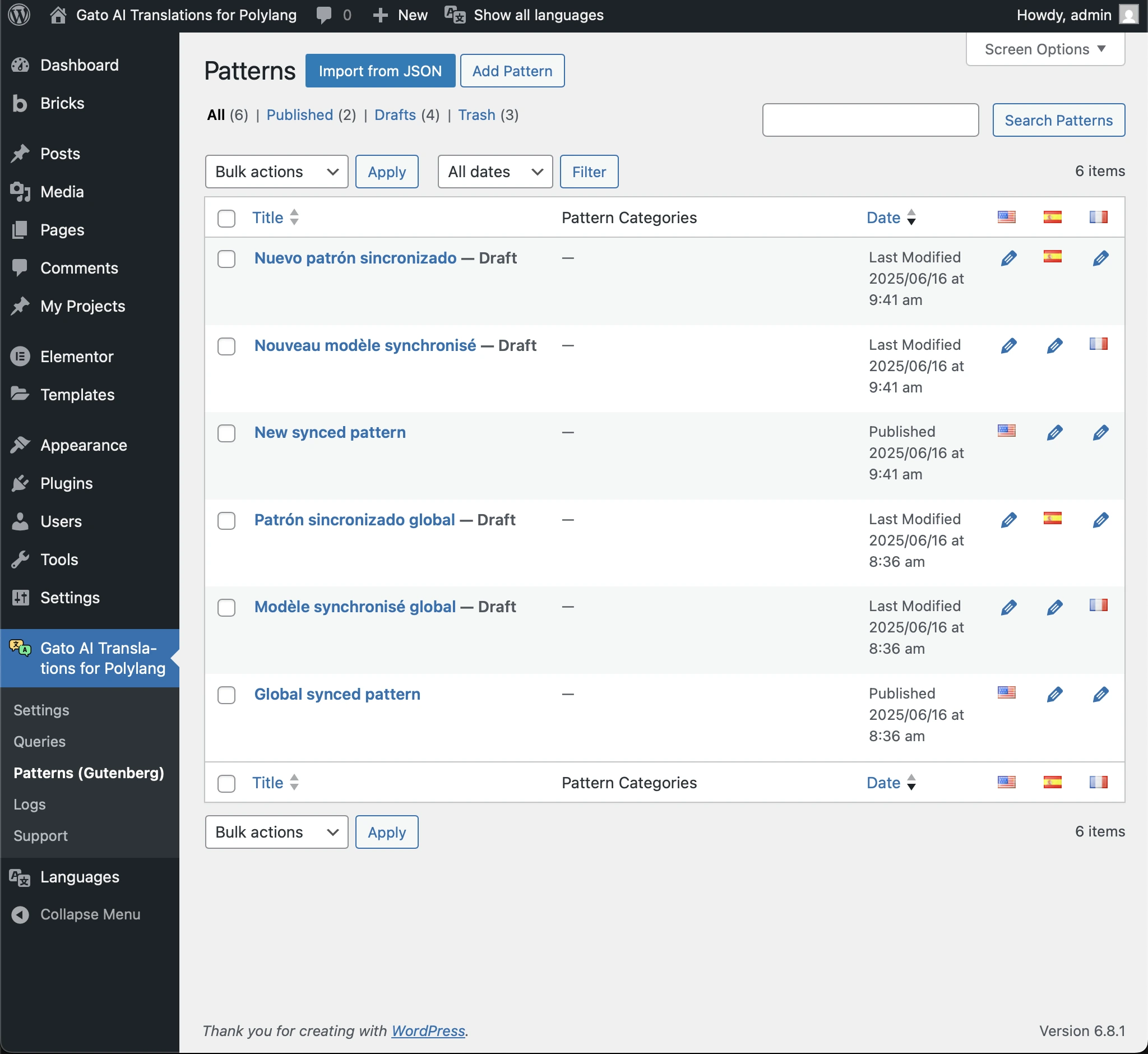
The screen will also show the translated patterns:
Disabling the custom Patterns page
You can disable showing the Patterns (Gutenberg) page in the menu.
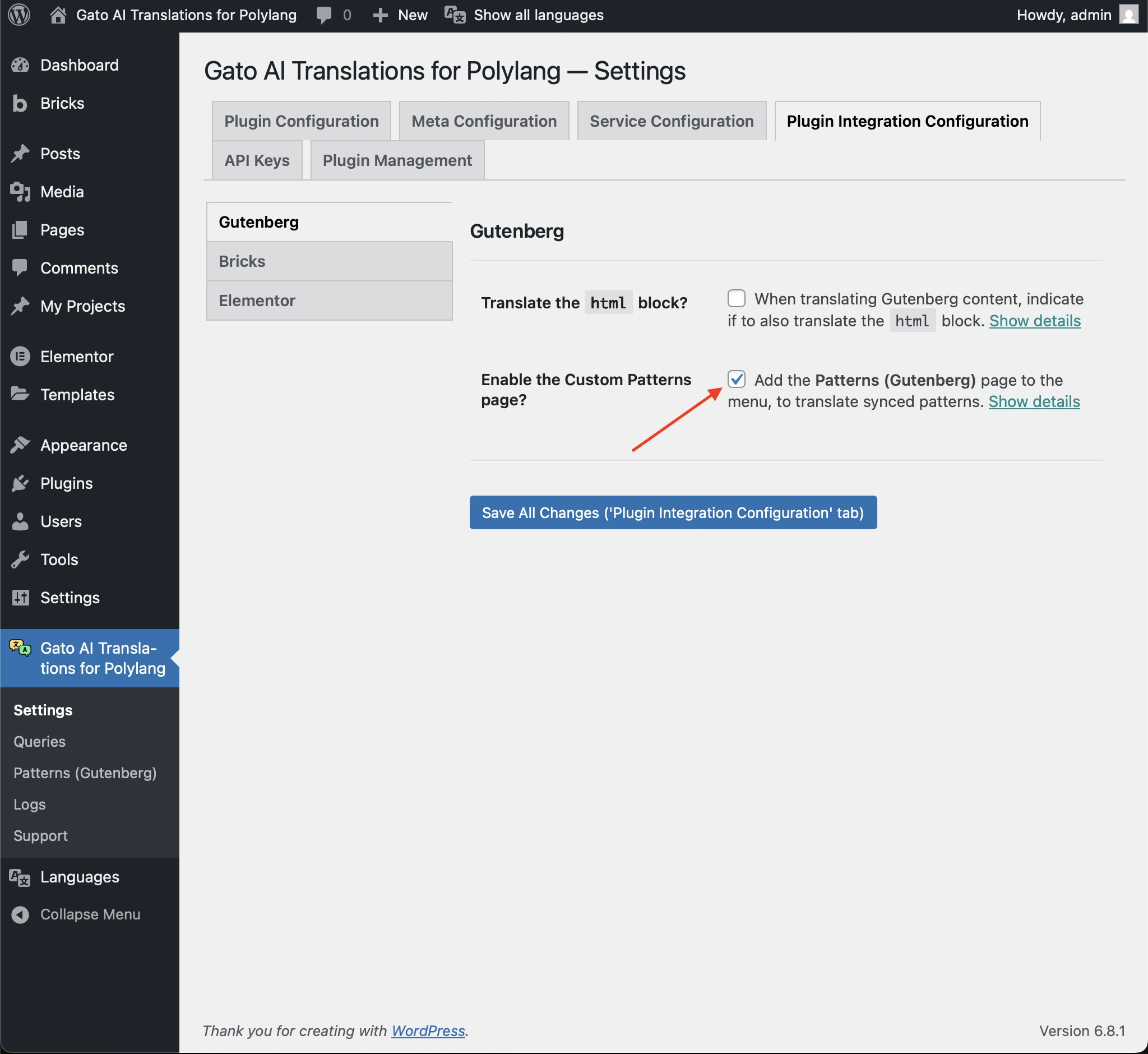
To do so, go to the Settings under Plugin Integration Configuration > Gutenberg, and uncheck the Enable the Custom Patterns page checkbox.