Retrieving page builder data to translate
Gato AI Translations for Polylang can be extended to support the translation of additional elements (whether custom or from 3rd-party plugins):
- Gutenberg blocks
- Elementor widgets
- Bricks elements
This guide explains the common process to support additional elements to translate across all page builders. Then refer to the specific guide for your page builder.
Gato AI Translations for Polylang uses Gato GraphQL to execute the translation.
In order to support additional elements, you may need to extract data from the page builder to translate, to find out their property names. This is done via a GraphQL query.
The steps below will guide you through the process.
Enable the Advanced Mode
The plugin provides the Queries CPT, with GraphQL queries to execute the translation.
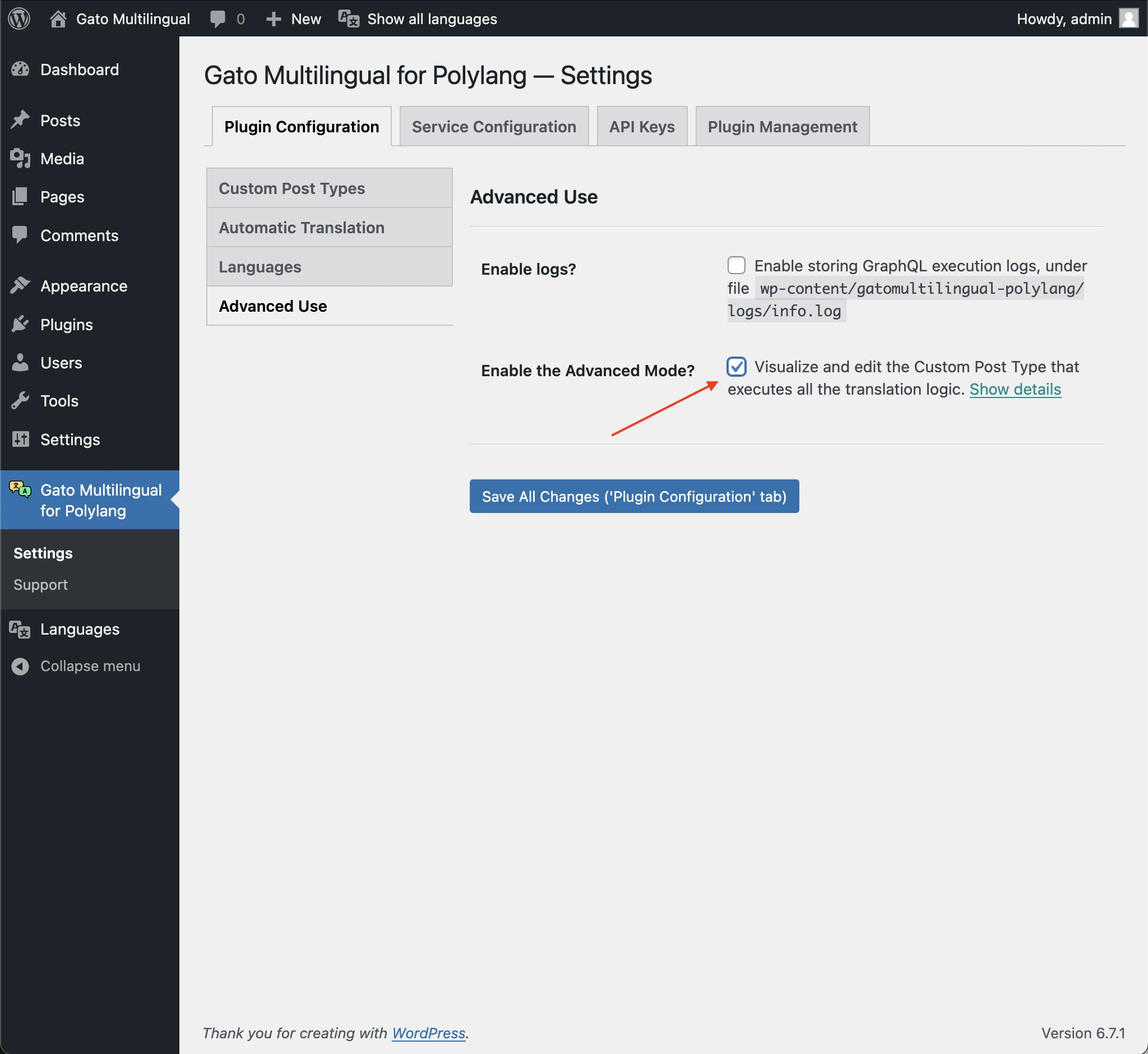
To view and edit the queries, click on Enable the Advanced Mode in the plugin Settings > Plugin Configuration > Advanced Use section:
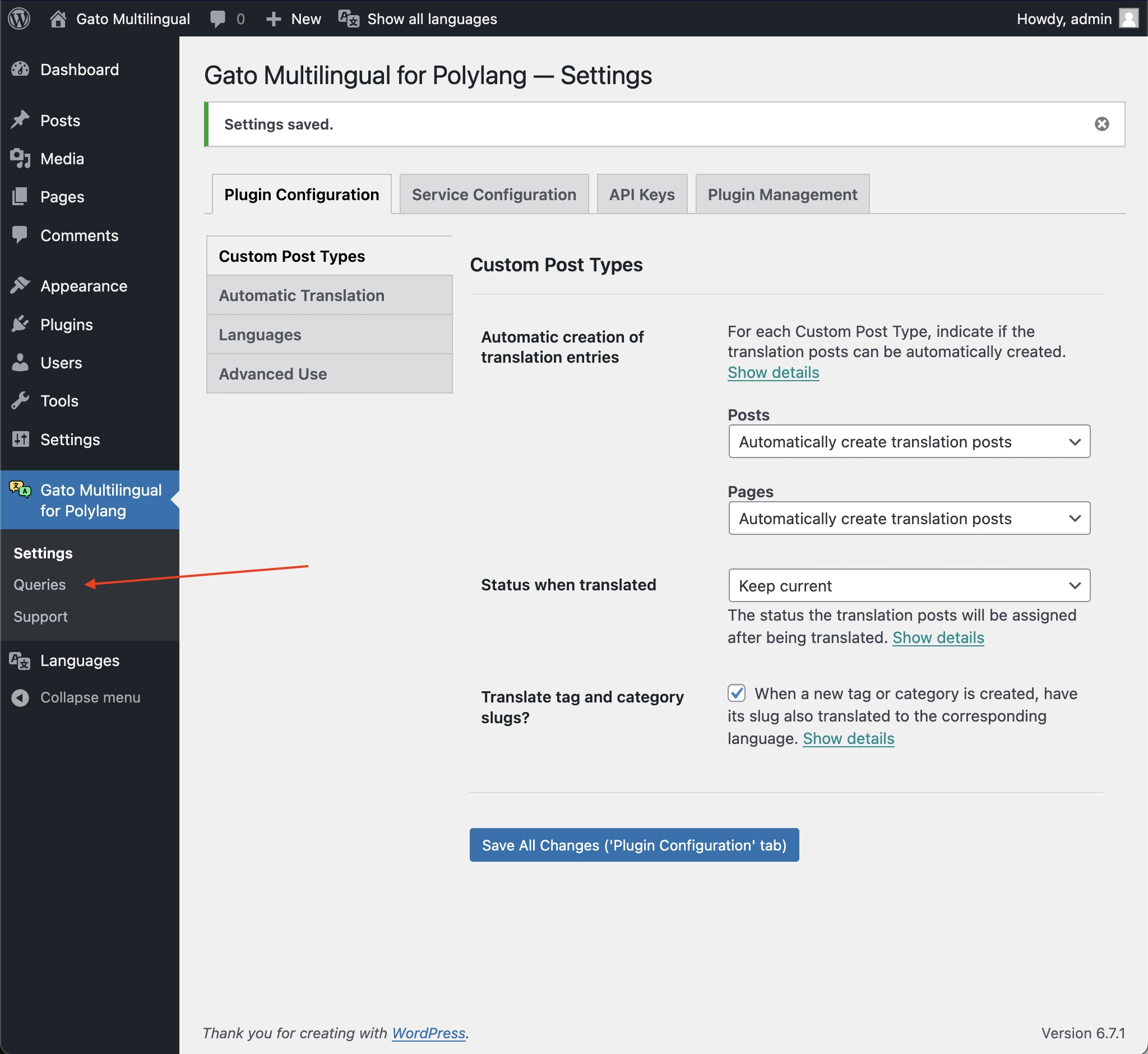
The Queries CPT will become available in the menu:
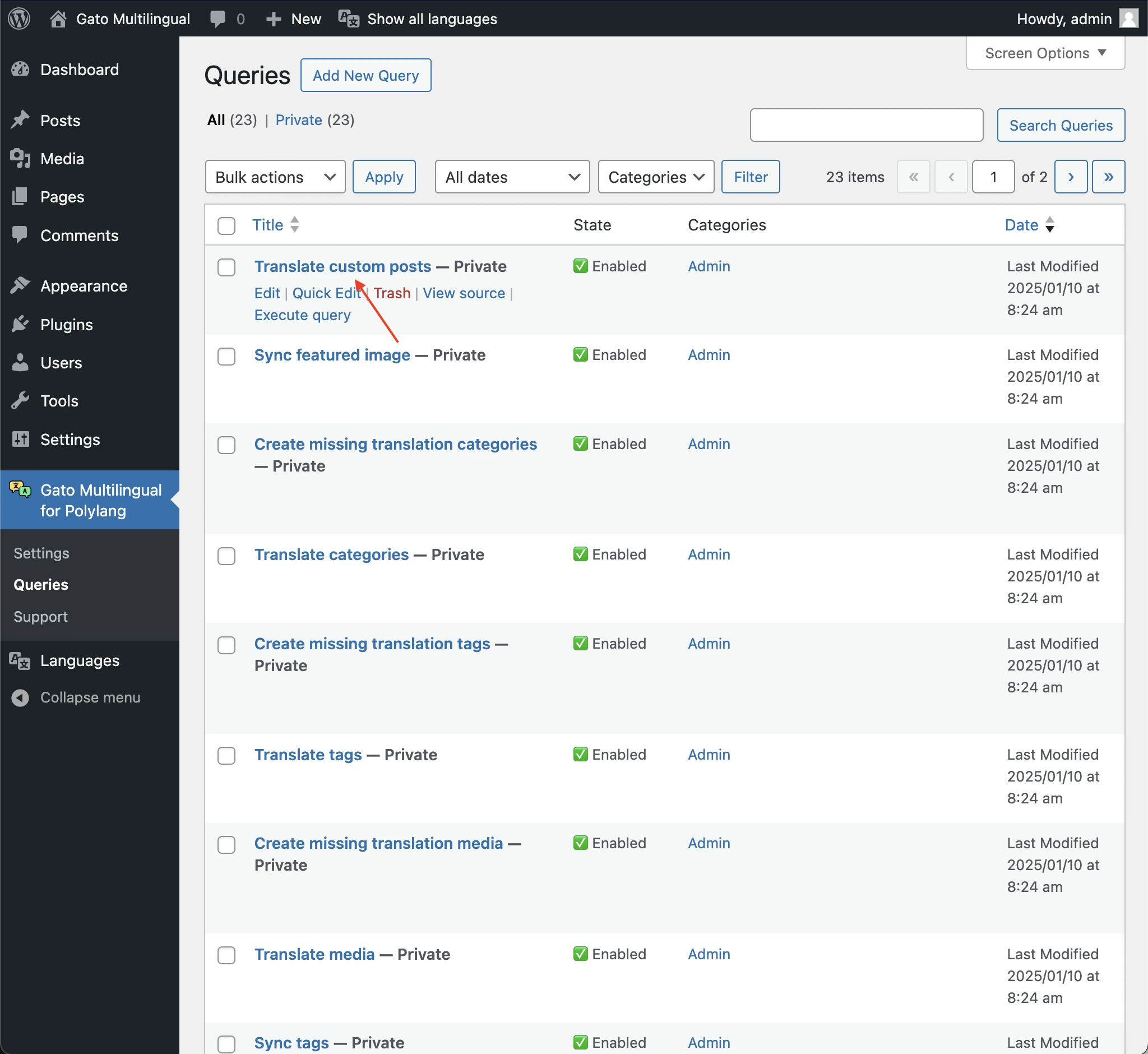
Click on the GraphQL query
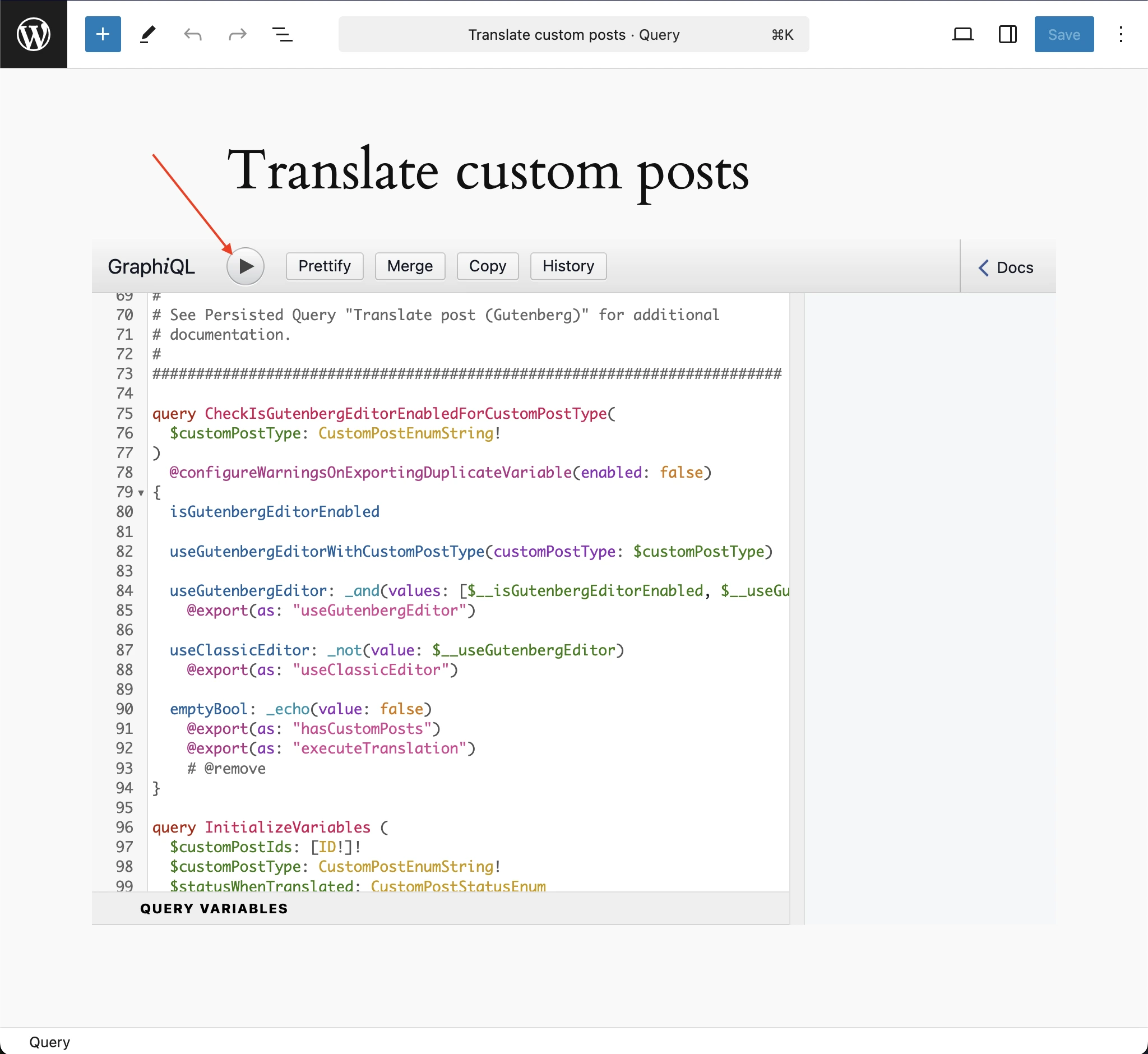
The Translate custom posts entry contains a GraphQL query with the logic to execute the translation.
On the Queries list page, edit that entry:
Add variables to execute the query
To execute the query, you will need to provide GraphQL variables (with the ID of the post to translate, and other information), under input Query Variables in the GraphiQL client.
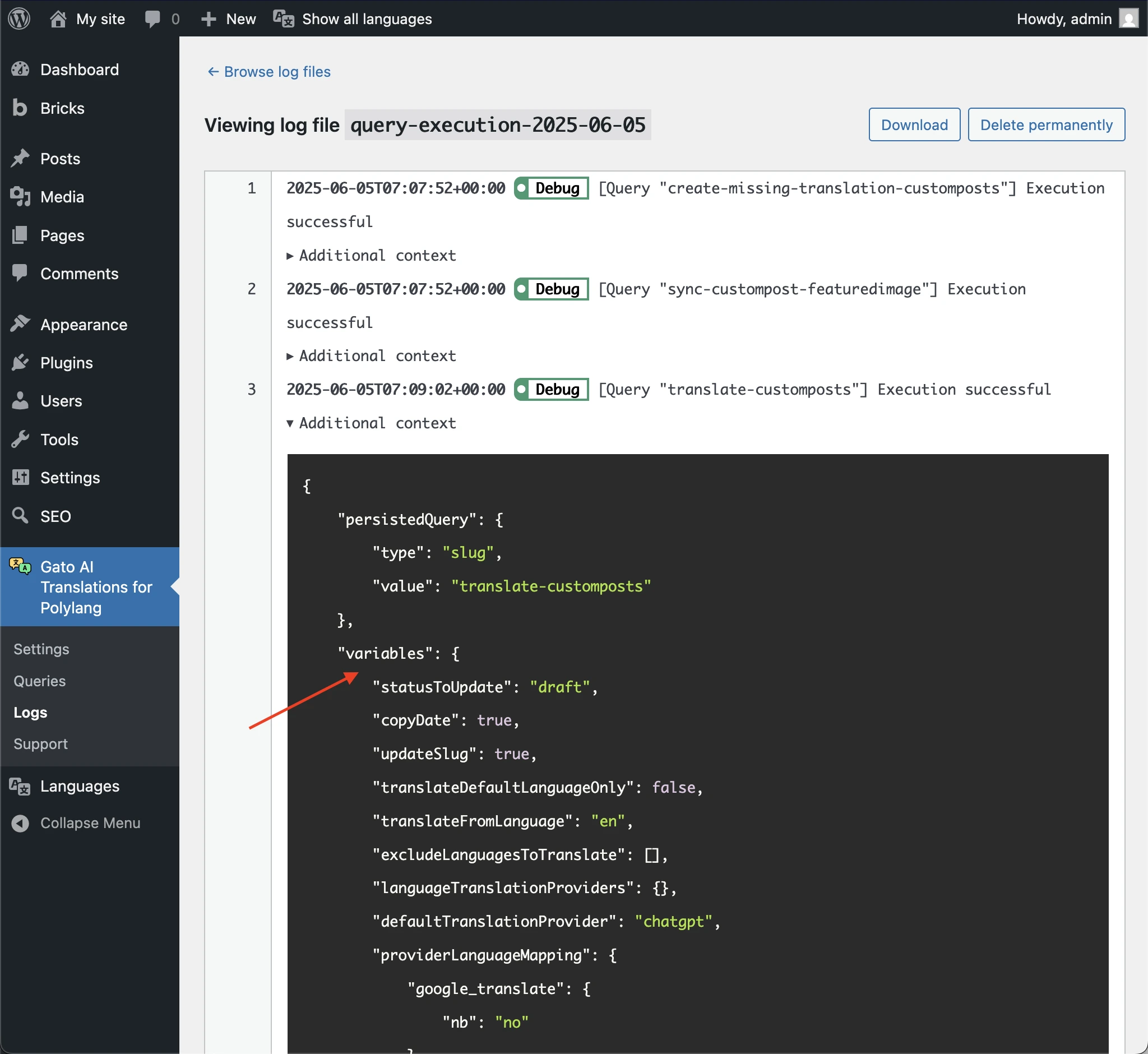
The plugin prints the variables used for each execution in its logs. You can conveniently copy the variables from there, and paste them in the GraphiQL client.
To do this, do the following:
- In the Logs Settings, make sure the Enable logs option and the 🟢 Debug severity level are enabled.
- Execute a translation (eg: via Bulk Actions)
- Go to the Logs page, and click on the latest
query-executionentry - Expand the
Additional contextlink from the latest[Query "translate-customposts"]log entry - Copy the variables, under entry
variables - Paste them in the Query Variables input in the GraphiQL client
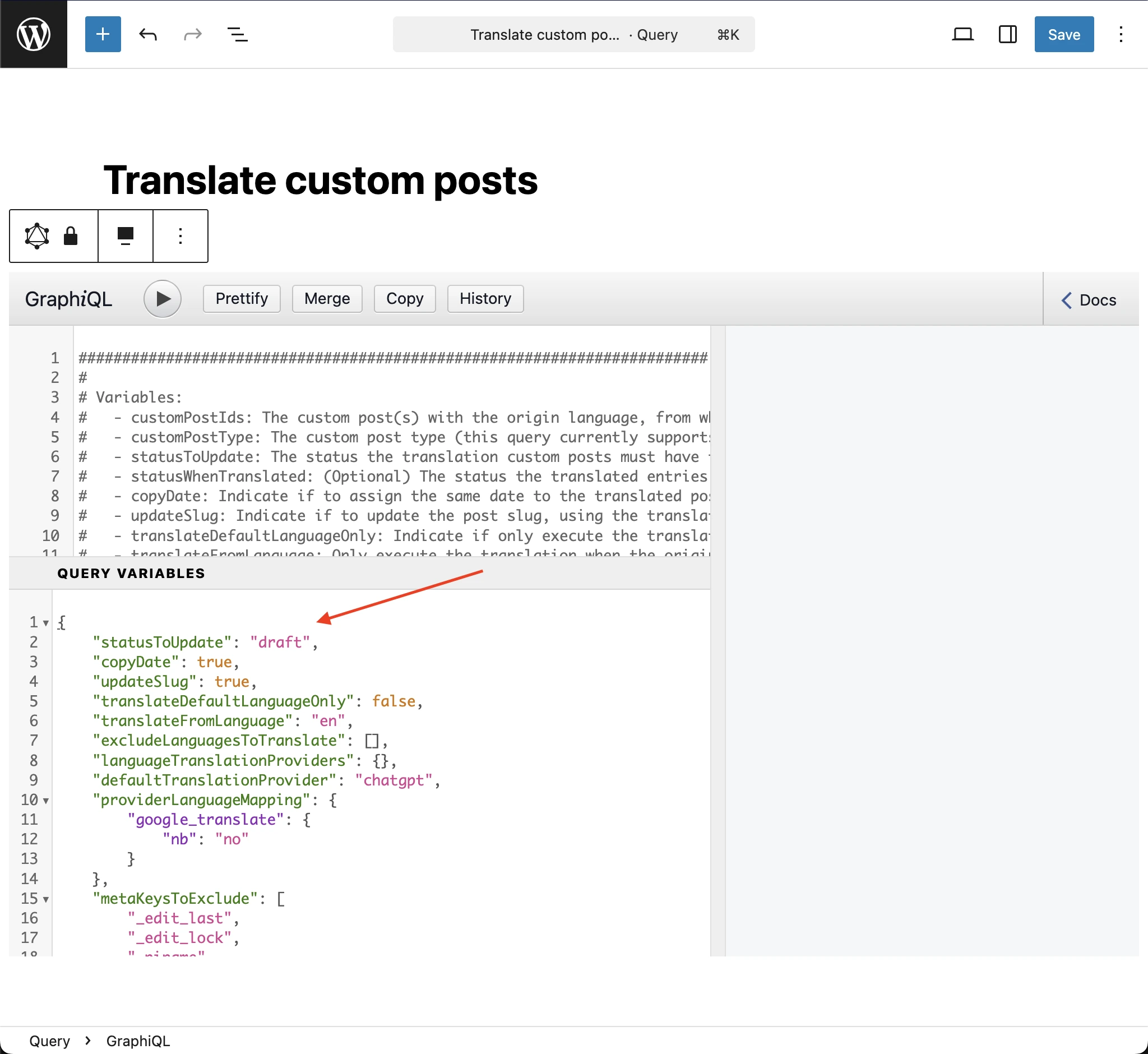
Execute the query
You can manually execute the query by pressing the Run button in the GraphiQL client.