

How to Translate WooCommerce with Polylang and AI (Complete Guide)

Running a multilingual WooCommerce store is no longer optional in 2026. If you sell internationally, having your products, categories, and checkout in each customer's language is directly tied to conversion rates. Research consistently shows that shoppers are more likely to buy when browsing in their native language, even when they're comfortable reading English. In this article, we’ll learn how to translate WooCommerce with Polylang and AI to save time while increasing your addressable market.
Polylang is an excellent translation plugin for WordPress and turns WooCommerce into a multilingual store. The problem is that translating everything in your store can be a tedious affair. Worse, this problem is multiplied by every language you add to the site.
Luckily, its Gato AI Translations for Polylang to the rescue! With it you can translate your entire product catalogue automatically and quickly — without a translation agency, without copy-pasting into spreadsheets, and without touching every product manually.
This guide walks through the full setup: prerequisites, translating products and categories, what the plugin handles versus what it doesn't, SEO metadata, and how to test that everything works.
Why Should You Translate a WooCommerce Store with AI?
Traditional translation workflows for WooCommerce stores have a few painful failure modes. You can hire a translation agency, which typically costs $0.10–$0.25 per word and requires exporting your content to spreadsheets, waiting days for delivery, and manually re-importing the results. You can use freelancers, which is cheaper but slower to coordinate, especially as your catalogue grows. Or you can do it yourself, which is only viable for very small stores in one additional language.
None of these scale. A store with 300 products, each with a title, short description, and full description, can easily have 150,000 words of content. At $0.15/word, that's $22,500 — before you add categories, attributes, SEO metadata, and email templates.
AI translation changes the economics. Gato AI Translations sends your content to your chosen AI provider (OpenAI, Claude, DeepL, Google Translate, and others) and costs a fraction of a cent per product. A 300-product store translates in minutes, not weeks, and the cost is measured in dollars, not thousands.
The quality is genuinely good for eCommerce content. Product titles, descriptions, and category names are structured, concrete text — exactly where AI translation performs best. For stores with highly idiomatic brand copy or technical specifications, a light human review pass is still worthwhile, but for most stores the output is publish-ready. You can even customize the translation prompt so that the translations match your brand voice more closely.
The other advantage is ongoing maintenance. When you add a new product, Gato translates it automatically at publish time. You don't build a backlog; every new product goes live in all your languages simultaneously.
What You'll Need
Before you start, make sure you have the following in place:
- Polylang for WooCommerce (and optionally, Polylang Pro — more on that below)
- Gato AI Translations for Polylang: get the plugin here
- An API key from at least one translation provider. Gato supports ChatGPT, Claude, Gemini, DeepSeek, Mistral AI, OpenRouter, DeepL, and Google Translate. You pay your chosen provider directly — no markup.
- WooCommerce installed and at least one product set up
Once those are in place, the setup takes about 15 minutes.
Which version of Polylang do you need?
Gato AI Translations for Polylang only provides automatic content translation with AI — we depend on Polylang to provide the translation features. The required features to translate WooCommerce are contained within the Polylang for WooCommerce plugin, so we will be using that in this article.
You may also want to use Polylang Pro as it allows the translations of URL slugs.
- Polylang free does not translate term slugs. So, if you have a product category for “Shoes” the product category URL will be
/product-category/shoes/in English and/fr/product-category/shoes-fr/in French. - Polylang Pro enables you to have either
/fr/product-categorie/shoes/(reuse the same slug) or/fr/product-categorie/chaussures/(translated slug).
Good news: The Polylang Business Pack includes both Polylang Pro and Polylang for WooCommerce at a discounted price.
| Feature | Gato AI Translations + Polylang free | Polylang Pro | Polylang for WooCommerce |
|---|---|---|---|
| Translate products | ✅ | ✅ | ✅ |
| Synchronize cart and product stock in different languages | ✅ | ||
| Translate WC cart, checkout and emails | ✅ | ||
| Share the same slug | ✅ | ||
| Translate automatically with AI | Multiple & Flexible translation providers | DeepL only |
Setup Plugins for Translating WooCommerce
Setting Up Polylang for WooCommerce
Review all WooCommerce settings. Install Polylang for WooCommerce and run through the setup wizard. Add all the languages you want to support. Refer to Polylang’s documentation on how to configure Polylang for WooCommerce.
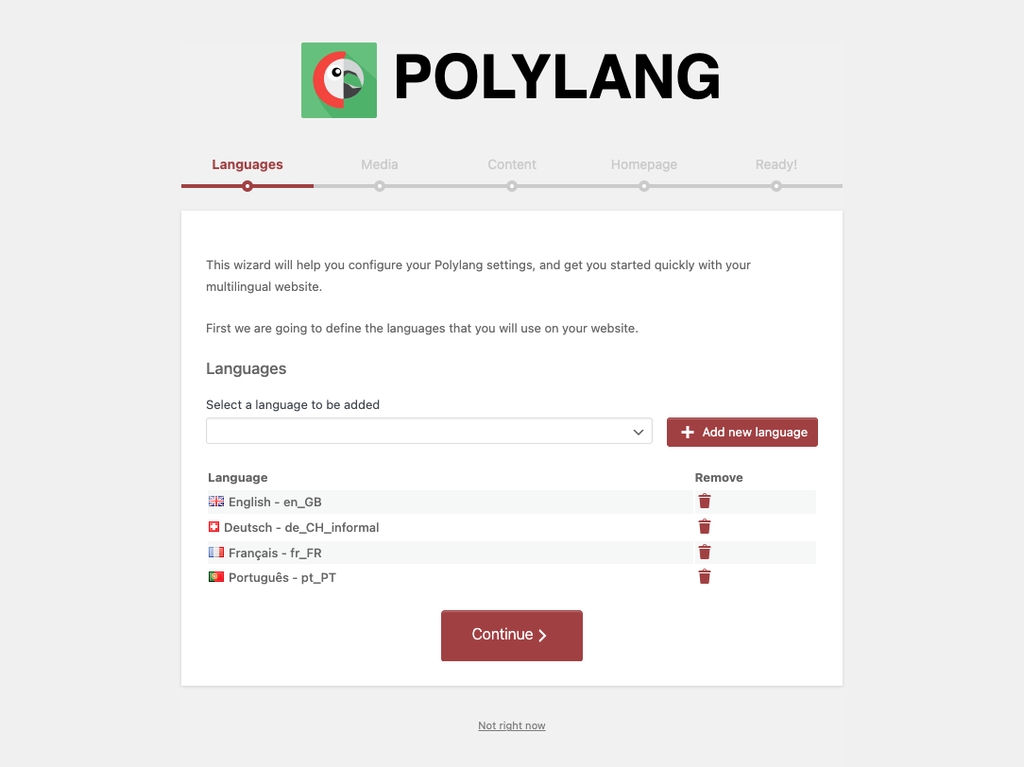
Important: Polylang automatically assigns the default language to all of your existing products, categories, tags and product attributes. Double check to confirm as products without a language assignment will not appear on the frontend in any language.
Before proceeding, install the WooCommerce language packs for your target languages. Go to Dashboard > Updates > Translations and install any available packs. Without these, WooCommerce's own interface strings — cart labels, checkout fields, button text — will stay in English regardless of your content translations.
Setup Gato AI Translations for Polylang
Install and activate Gato AI Translations for Polylang. Navigate to Settings > API keys and enter your API keys for your translation provider(s) and then select your default translation provider. Refer to our documentation for detailed setup steps.
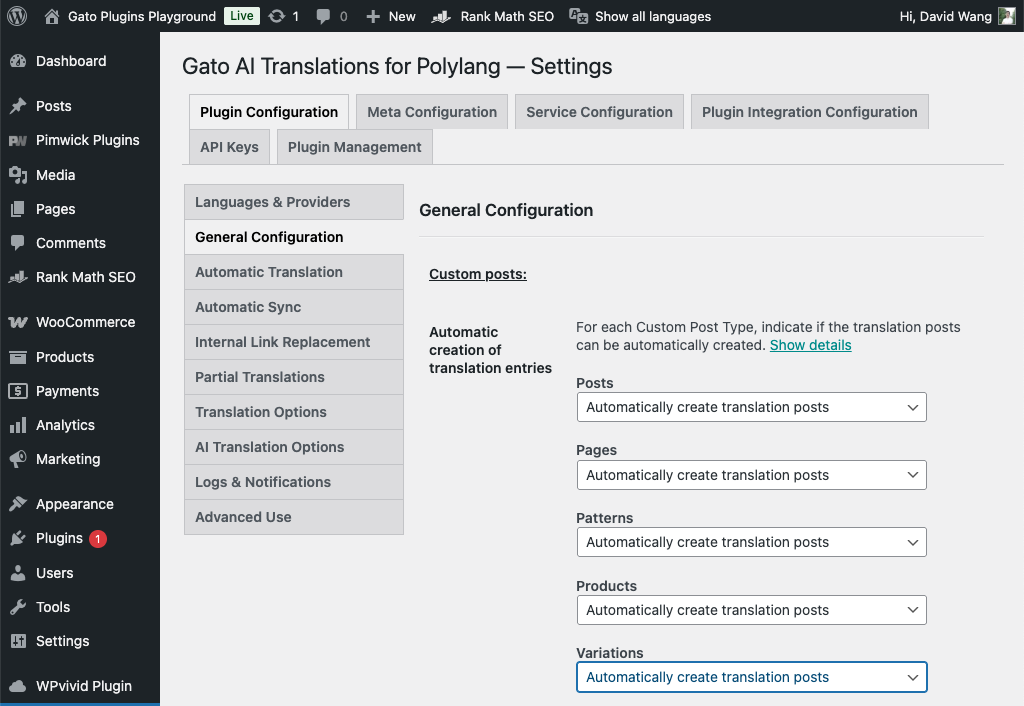
Finally, navigate to Settings > Plugin Configuration > General Configuration and change the setting for Products and Variations to Automatically create translation posts.
Now we’re ready to get translating.
Translating Product Attributes, Categories & Tags
It is recommended to translate product taxonomies (product attributes, categories and tags) first to avoid synchronization issues between the product translations.
Product categories and tags are WordPress taxonomies, and Gato AI Translation works with Polylang to handle taxonomy translation out of the box. In the product category list (Products > Categories), each category will have a translation status indicator. Select the terms you wish to translate, then choose the Gato Translate option under Bulk actions. Click Apply and Gato Translate will translate the terms and link all of them together.
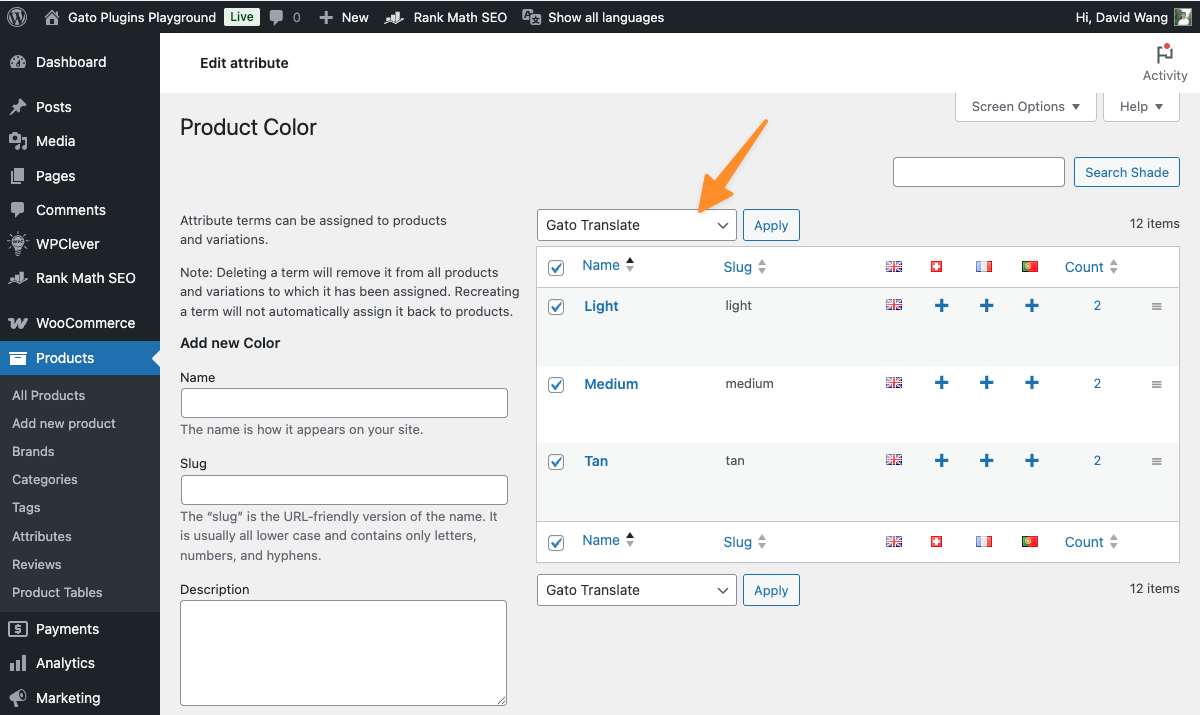
Product attributes are taxonomies too, and these are used for variable products. Navigate to Products > Attributes, then click on Configure Terms for the attribute you wish to translate. Select and bulk translate the attribute terms like above.
The attribute names can be translated in Polylang’s Translations screen, under the WooCommerce group. This is useful for translating attributes like Size and Color (English) to Taille and Couleur (French).
Translating WooCommerce Products
Products are standard WordPress posts under the hood, so Gato handles them the same way it handles blog posts or pages: it translates the title, description, short description, and any custom fields you've mapped.
New products are translated automatically when they are published. To translate existing products on your site, navigate to the Products screen. Select the products you want to translate and then choose the Gato Translate option under the Bulk actions menu. Click Apply to translate the selected products.
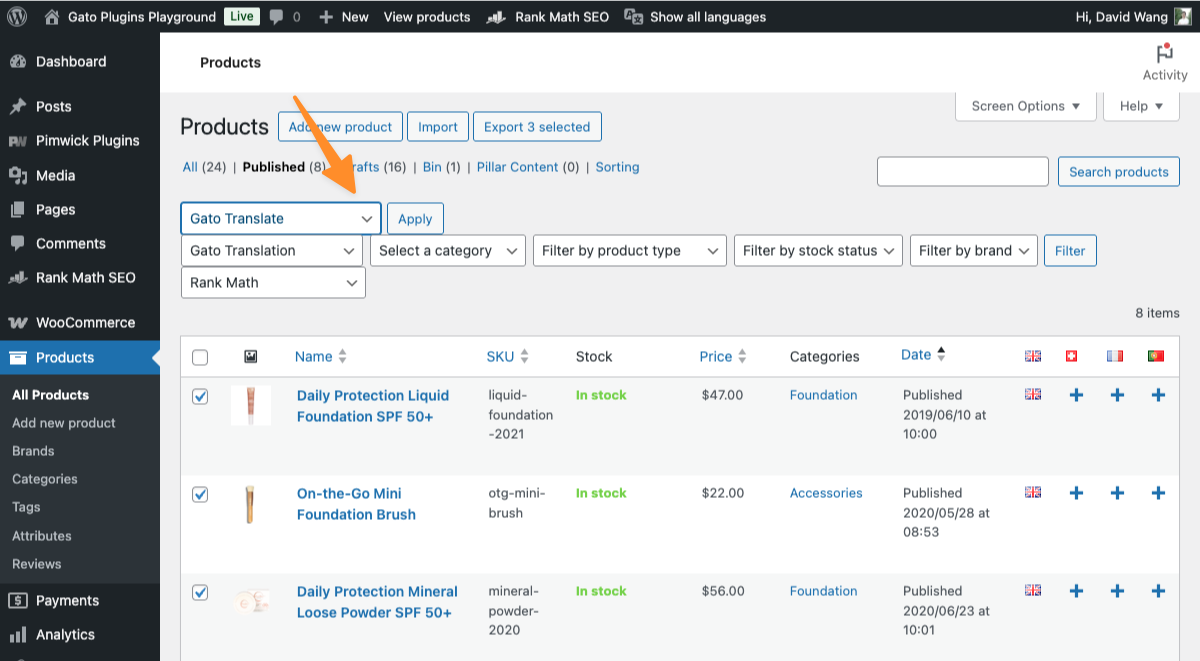
Please note that the time taken to complete the translation can vary depending on the length of content and the chosen AI service performing the translation.
For very large stores (hundreds or thousands of products), you can also trigger translations via WP-CLI. See the WP-CLI commands reference for the full command list and options.
After running the translation, edit a translated product to confirm that it was translated correctly. Sometimes variable products may need the attributes to be set before the variations appear.
Product stock and pricing
One important thing to understand about stock and pricing: stock levels, prices, and SKUs are shared across all language versions of a product — they are not duplicated. If a customer in France buys the last unit, the English store immediately shows out of stock. Only the content (title, description, SEO metadata) has separate translations per language.
Editing and locking translations manually
Translated content lives as a standard WordPress post — you can open any translation in the editor and change it directly. To prevent Gato from overwriting your edits in future, publish the translated post (or set it to Pending), and in Settings > Plugin Configuration > General Configuration set "Status to update" to Draft. Gato will then only auto-update draft translations, leaving published content untouched. See how to lock a translated post.
If the AI output doesn't match your brand tone or terminology, you can customize the translation prompt in Settings > Plugin Configuration > AI Translation Options. For more control, create AI Prompt custom posts per language pair — useful for stores that need a formal register in German but a casual tone in English. See customizing AI prompts.
Updating a translation after editing the source product
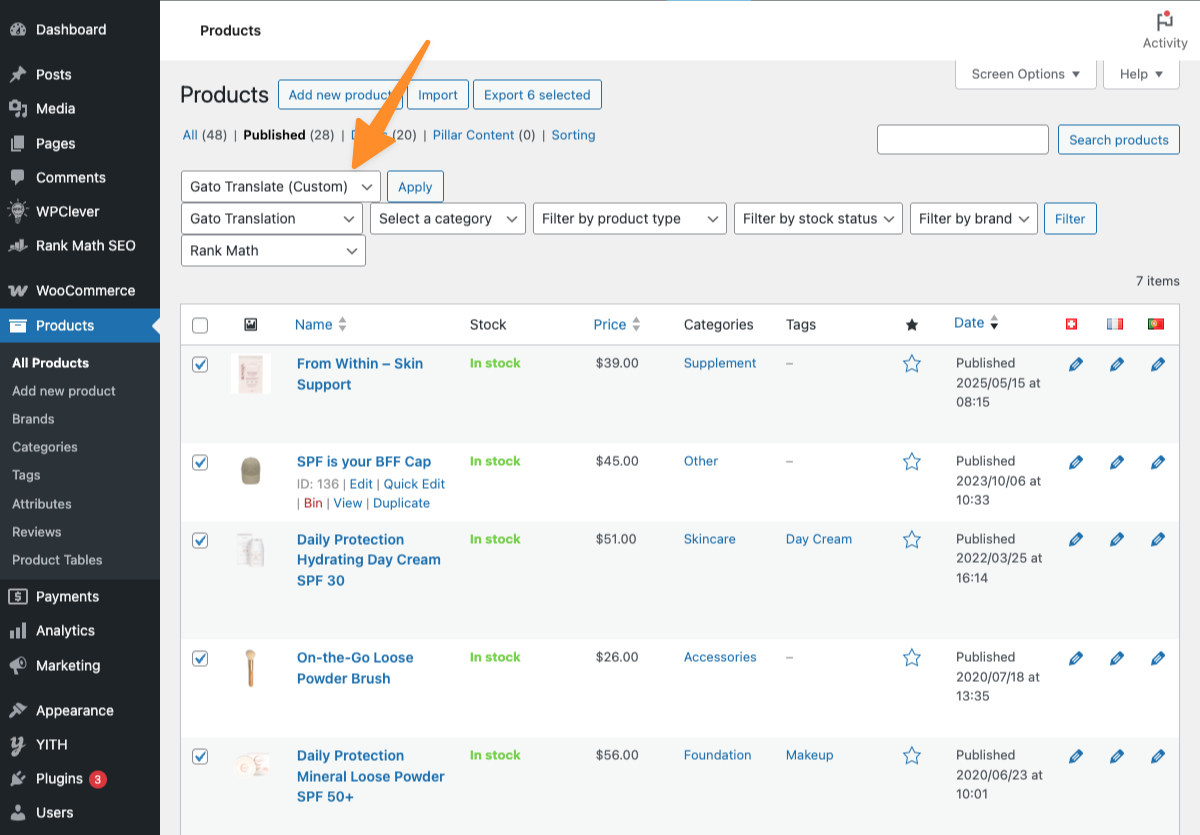
By default, Gato won't overwrite a translation that's already been published — this protects any manual edits you've made. If you update a source product and want to refresh its translations, use the Gato Translate (Custom) bulk action. In the custom settings panel, set "Status to update" to Publish or Any, then run the translation. See how to update a published translation for full details.
What about product images?
Gato translates text fields only — image files are not duplicated or replaced per language. Polylang's media translation module (disabled by default) can translate image metadata: alt text, title, and description. For stores that need a different image per language (e.g. a promotional banner with text baked in), enable the media module and manually assign a different image to each language's translated product. See Polylang's guide on working with media.
Translating Cart, Checkout & Emails
A WooCommerce store is more than just the products. The cart, checkout, order emails, and payment gateway descriptions all need to be in the customer’s language for the full multilingual experience. This is an area where it’s worth being clear about what each plugin handles.
What Polylang for WooCommerce handles:
Polylang for WooCommerce translates the WooCommerce-specific strings that sit outside the content layer, i.e. these are things Gato doesn’t touch:
- Page URLs — the shop, cart, and checkout pages each get their own translated URL (e.g.
/fr/panier/instead of/fr/cart/) - Email notifications — order confirmations, shipping notifications, and other transactional emails are sent in the customer’s language
- Shipping method names — displayed in the customer’s language at checkout
- Payment gateway labels — the names and descriptions shown for each payment option
- Tax labels — including the "VAT" or "Tax" label shown in the cart
To translate these, go to Languages > Translations in the WordPress admin. WooCommerce strings appear under their own group. Work through each string and save.
What Gato handles:
Gato translates content — product titles, descriptions, short descriptions, custom fields, and SEO metadata. It doesn’t translate WooCommerce interface strings, which is Polylang for WooCommerce’s territory.
What neither handles automatically:
Strings added by your theme or third-party plugins that aren’t registered with Polylang won’t appear in the Translations screen. For those, use another plugin (such as Loco Translate) to add translations to the plugin or theme’s .po file directly.
Refer to Polylang’s documentation on translating WooCommerce URLs and strings for a full walkthrough of the Translations panel.
Translating SEO Metadata for Products
If you're using an SEO plugin, Gato will translate the meta title and meta description for each product alongside the rest of the content. Supported SEO plugins include Yoast SEO, Rank Math, SEOPress, All in One SEO, Slim SEO, The SEO Framework, WP Meta SEO, and SEO Simple Pack.
No extra configuration is needed — Gato detects which SEO plugin is active and includes its fields in the translation payload automatically.
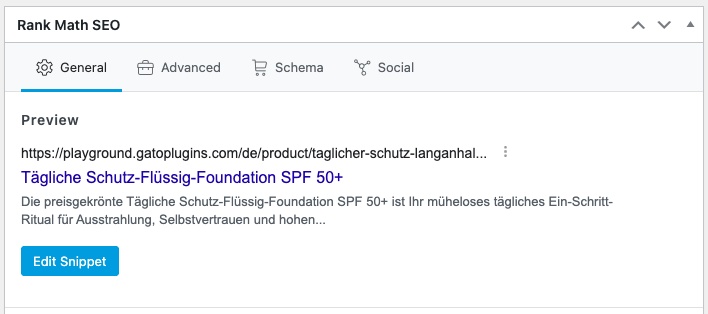
This matters for international organic search. If your French product pages have English meta titles, you're leaving ranking potential on the table. See the SEO plugins integration guide for the full list of supported fields per plugin.
Add a Language Switcher
Now that you have some translated content, add the language switcher so visitors can actually navigate between languages. Polylang adds a Language Switcher block and widget you can place in your header, navigation menu, or sidebar.
Go to Appearance > Menus (classic themes) or use the site editor (block themes) and add the language switcher to your header menu. Then visit your shop page on the frontend and confirm the switcher appears and links to the correct language versions of the page. It’s worth doing this now — before translating — so you can immediately verify each translation as you go.
When a visitor uses the switcher, Polylang takes them to the translated equivalent of the current page — if they’re on a product page, they land on that same product in the new language, not the homepage. The selected language is stored in a cookie and persists for the rest of their browsing session.
Compatibility With WooCommerce Extensions
Gato works with the WooCommerce content layer, which means most WooCommerce extensions that store data in post meta or custom post types are compatible by default. Extensions that add content fields (like custom product tabs or product options) can be included in translation as long as those fields are registered in Gato's configuration.
Popular plugins compatible with Gato AI Translations:
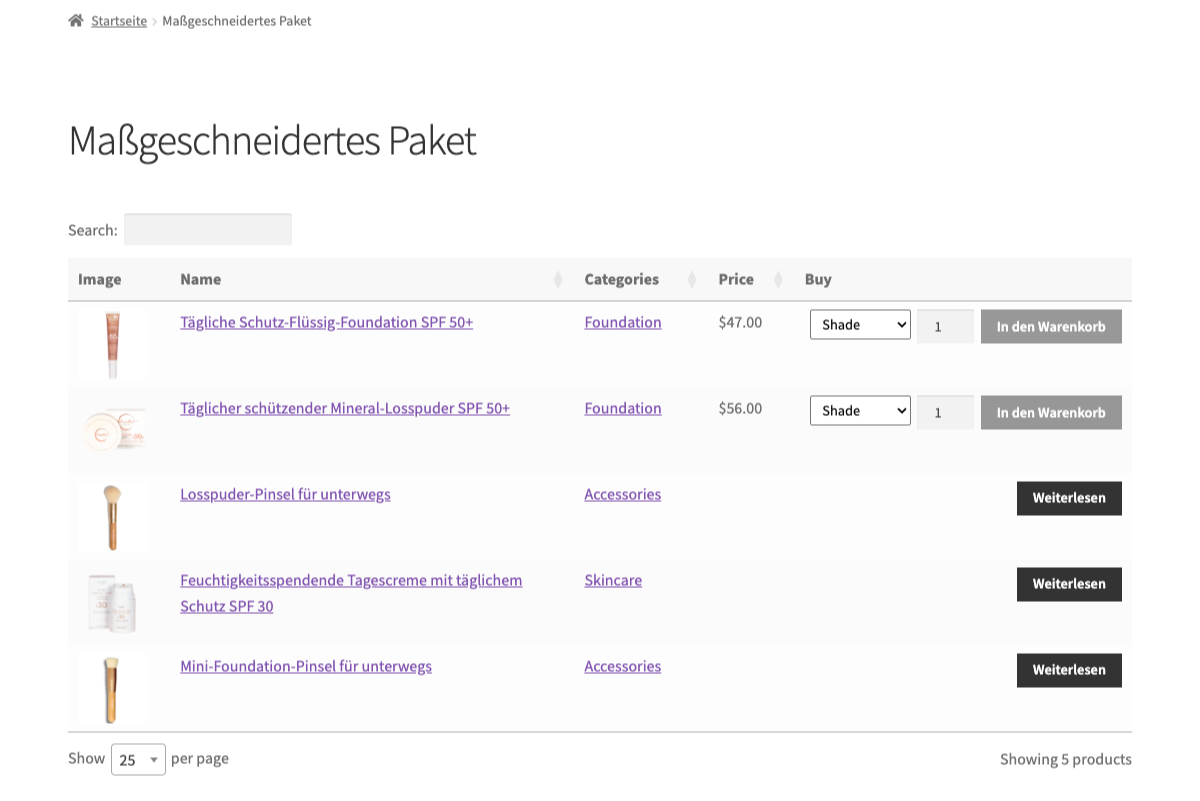
Barn2 Product Tables is used to display products in a filterable table. Your translated content will render correctly in the table once the underlying products are translated, even if the plugin itself is not yet fully internationalized.
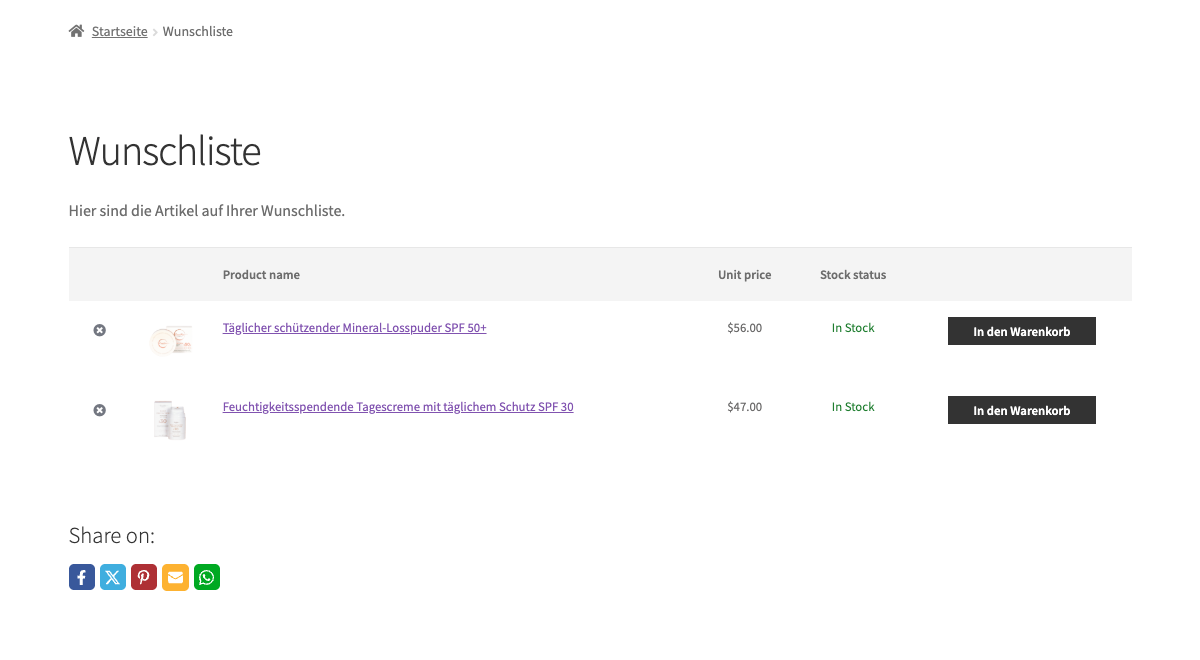
YITH WooCommerce Wishlist is used to allow store visitors to save their products for later. The products display in the translated language correctly and even syncs across languages.
Advanced Custom Fields or Meta Box creates custom fields for your products and website content. Gato has native support — see the plugin settings to map which fields should be included.
Testing Your Multilingual Store
Once you've translated products and categories, do a quick end-to-end check:
1. Check the language switcher. Visit your shop page and switch languages using your language switcher widget or menu item. Confirm that products and categories display translated names and descriptions.
2. Check product URLs. Each translated product should have its own URL in the target language. With Polylang, the URL structure is typically /fr/product/translated-slug/. If a product URL resolves to the default language, the translation may not be published yet.
3. Check category pages. Visit a translated category page and confirm products display correctly. If products aren't appearing, check that both the product and its translation are set to "Published" status.
4. Test the checkout flow. Add a product to the cart in a non-English language and proceed through checkout. Confirm that the cart, checkout, and order confirmation pages display in the correct language.
5. Check order emails. Place a test order and confirm that the order confirmation email arrives in the expected language. Email language in WooCommerce follows the customer's language at the time of the order.
Common Issues & Fixes
Products not appearing in the translated language This usually means the translated product is in draft status. In the product list, filter by the target language using the language dropdown and look for products in draft. Publish them individually or in bulk.
Translated product URLs returning 404 Go to Settings > Permalinks and click Save Changes — this flushes the rewrite rules and usually resolves the issue. No changes needed; just save.
Prices showing differently across languages WooCommerce uses a single price field shared across all languages — this is by design. If you need currency switching per language, you'll need a separate currency-switching plugin such as Multi Currency Switcher for WooCommerce or CURCY Multi Currency for WooCommerce.
Cart and checkout still showing in English Check that the WooCommerce language pack is installed for your target language. Go to Dashboard > Updates and look for any pending translation updates. If the translation isn't available there, use Loco Translate to add it manually.
Bulk translation not completing For large catalogues, bulk translation runs in the background via WordPress's Action Scheduler. Check Tools > Scheduled Actions (if you have WooCommerce or Action Scheduler installed) or the Gato logs under Settings > Logs for any errors. The most common cause is an API key issue or a rate limit from the translation provider. See the troubleshooting guide for step-by-step diagnostics.
Multilingual WooCommerce Made Easy with Polylang and AI
A properly translated WooCommerce store takes more than just running your product titles through a translation API — but it doesn't have to take weeks either. With Polylang handling the multilingual structure and Gato handling the content, the heavy lifting is largely automated. What's left is the setup, a quick test, and occasionally checking that new products get translated as you add them.
If you're ready to get started, get Gato AI Translations for Polylang and have your first language live in an afternoon.
